Quick answer: To set up network monitoring on a Mac, start with the free tools:
networkQualityfor a speed baseline, Activity Monitor for per-app traffic and Wireless Diagnostics for Wi-Fi. Then turn on UPnP or SNMP on your router so a monitor can see the whole network. Finally, add a 24/7 monitor such as PeakHour for alerts and history.

The checklist
| # | Step | Tool | Time |
|---|---|---|---|
| 1 | Decide what you’re monitoring | — | 2 min |
| 2 | Take a baseline | networkQuality, ping |
5 min |
| 3 | Find out what’s using the connection | Activity Monitor | 2 min |
| 4 | Check your Wi-Fi | Wireless Diagnostics | 5 min |
| 5 | Turn on UPnP or SNMP on your router | Router admin page | 5 min |
| 6 | Install a 24/7 monitor | PeakHour | 5 min |
| 7 | Set up alerts | PeakHour notifications | 3 min |
| 8 | Keep the history | History, CSV Logging | 2 min |
| 9 | Add specialist tools only if you need them | Little Snitch, LuLu, Wireshark | — |
1. Decide what you’re monitoring
“Network monitoring” covers several different jobs, and each needs a different tool:
| You want to know… | Use |
|---|---|
| Is my internet as fast as I pay for? | networkQuality, plus scheduled tests over time |
| Why do calls freeze or games lag? | Latency, jitter and packet loss, measured continuously |
| Is it my Wi-Fi, my router or my ISP? | Per-hop latency: Mac → router → ISP → internet |
| How much data am I using this month? | A usage monitor that reads your router |
| Which app is talking to which server? | A per-app firewall such as Little Snitch or LuLu |
Most home and small-office setups need the first four. The fifth is a security job, covered in step 9.
2. Take a baseline
Before changing anything, measure what you have now, so you can tell later whether something got worse.
- Speed and responsiveness: open Terminal and run
networkQuality. It’s built into macOS Monterey and later. Note the uplink and downlink capacity and the responsiveness rating (Low, Medium or High). Apple explains the ratings in Test Wi-Fi networks with Apple Network Responsiveness. - Latency and packet loss: find your router’s address with
route -n get default | grep gateway. Then runping -c 100against the router and against an internet host such as1.1.1.1. Note the packet loss and average round-trip time for each.
Run the baseline once over Wi-Fi and once over Ethernet if you can. A big gap between the two points to your Wi-Fi. For a browser-based check, try the 5-minute internet stability test. How to track ISP performance on a Mac explains how to read the results.
3. Find out what’s using the connection
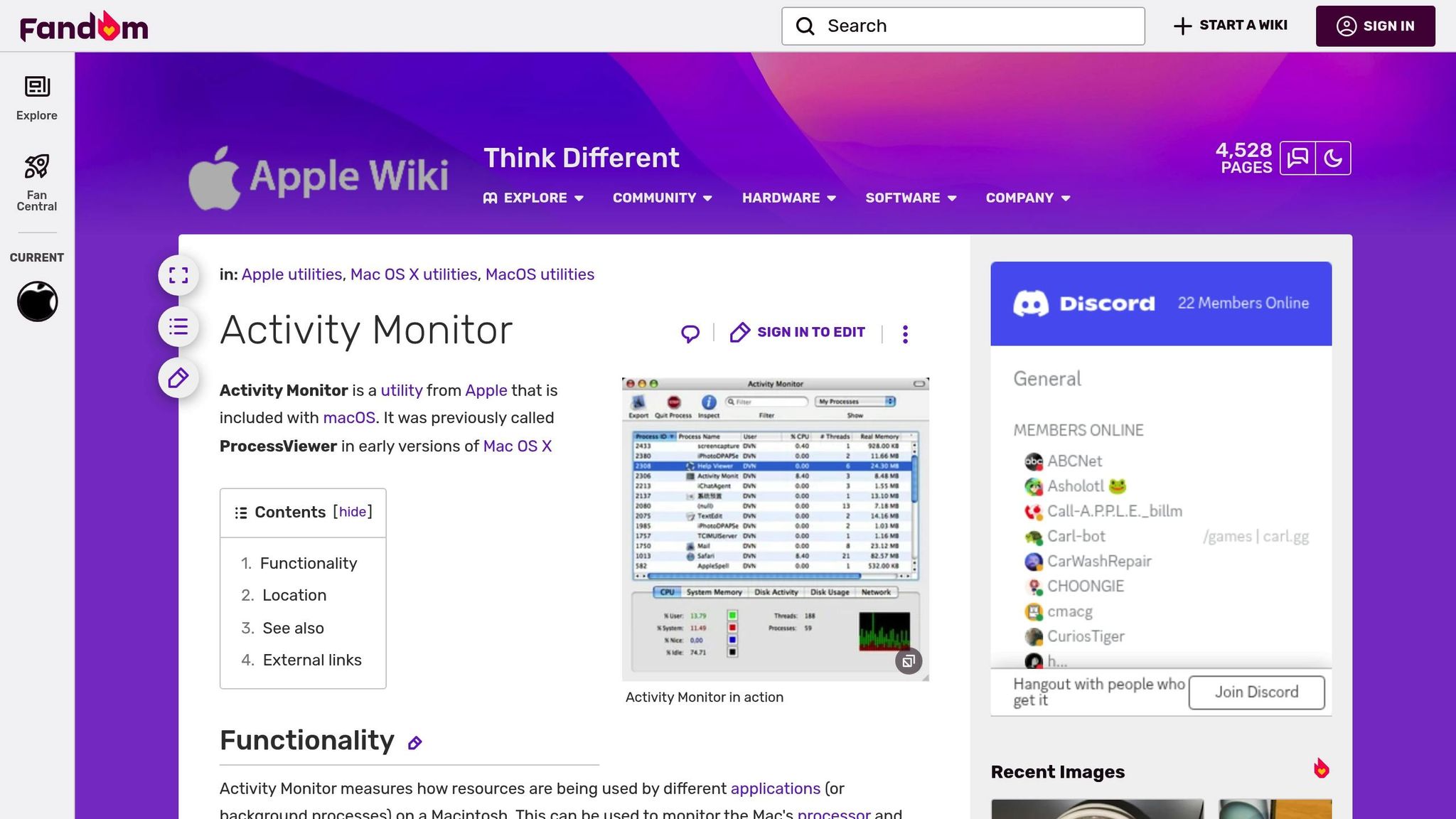
Open Activity Monitor (Applications → Utilities) and click the Network tab. Sort by Sent Bytes or Rcvd Bytes to find the busiest apps. The bottom of the window shows the totals since startup and the live rate. To keep a live graph on Activity Monitor’s Dock icon, choose View → Dock Icon → Show Network Usage.
Activity Monitor only covers this Mac, resets at every restart and keeps no history. It’s for “what’s busy right now?” For usage over a month, see how to check data usage on a Mac.
4. Check your Wi-Fi
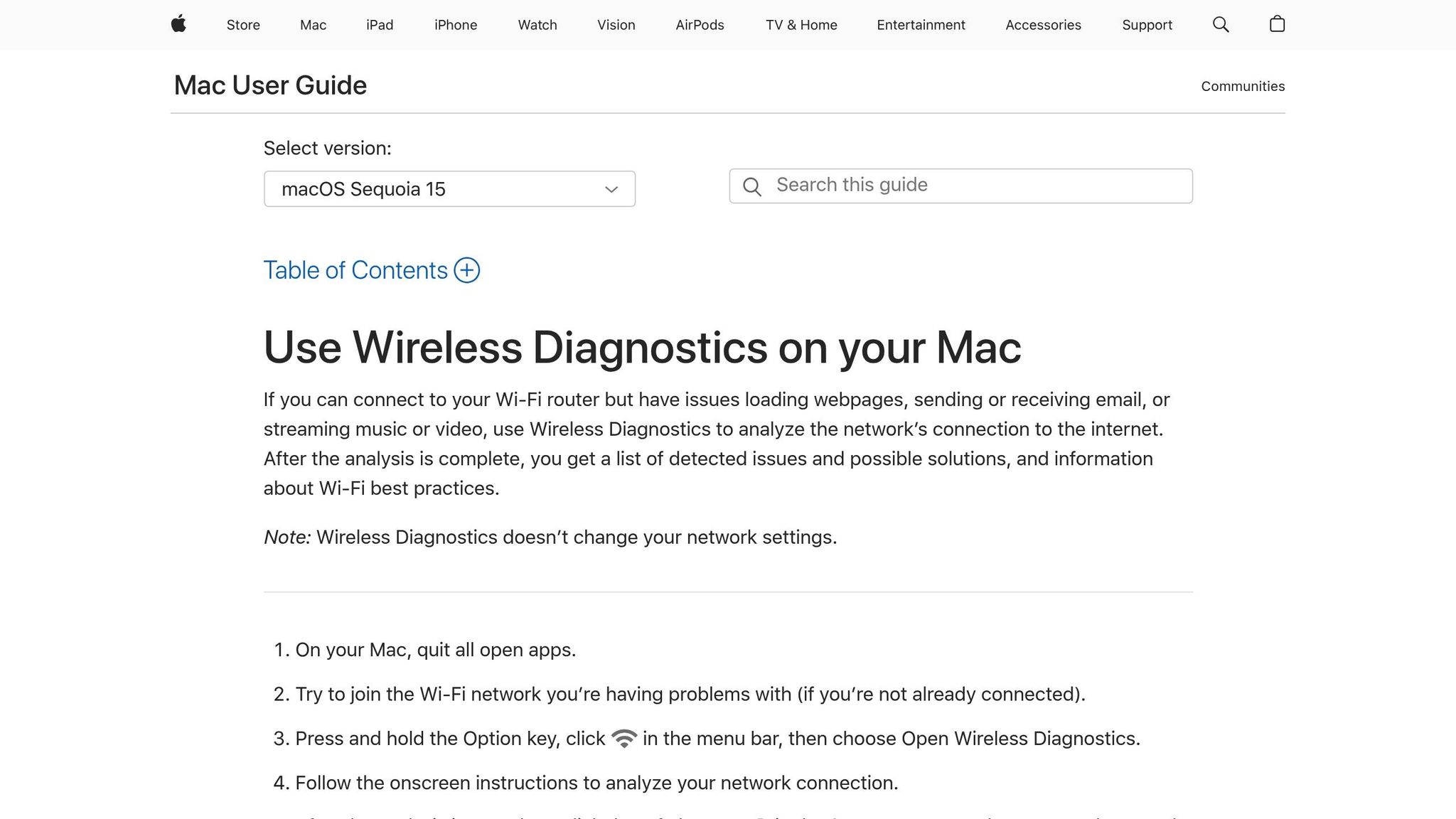
Hold Option, click the Wi-Fi icon in the menu bar and choose Open Wireless Diagnostics. The assistant checks your connection and suggests fixes. Apple’s guide is Use Wireless Diagnostics on your Mac.
The Window menu has the more useful tools:
- Scan lists nearby networks with their channels and signal strength, and suggests the best channels.
- Performance graphs signal, noise and transmit rate live, so you can walk around and find weak spots.
If the step 2 baseline was much worse on Wi-Fi than on Ethernet, fix the Wi-Fi before you blame your ISP.
5. Turn on UPnP or SNMP on your router
Your Mac only sees its own traffic. Your router sees everyone’s. For a monitor to read the router’s traffic counters, the router needs one of two standard protocols switched on:
- UPnP: supported by most home routers, but often off by default. Look for “UPnP” in the router’s admin page.
- SNMP: found on prosumer and business routers, firewalls, switches and access points. Use a read-only community string, or SNMPv3 if the device supports it.
Not sure which to use? See SNMP vs UPnP for Mac network monitoring. Other Macs, PCs and Linux machines can be monitored over SNMP too; see how to enable SNMP on Mac, PC and Linux.
6. Install a 24/7 monitor
The built-in tools only answer “what’s happening right now?” Problems that come and go need something that runs all the time. PeakHour is a network monitor that lives in the Mac menu bar. Set it up like this:
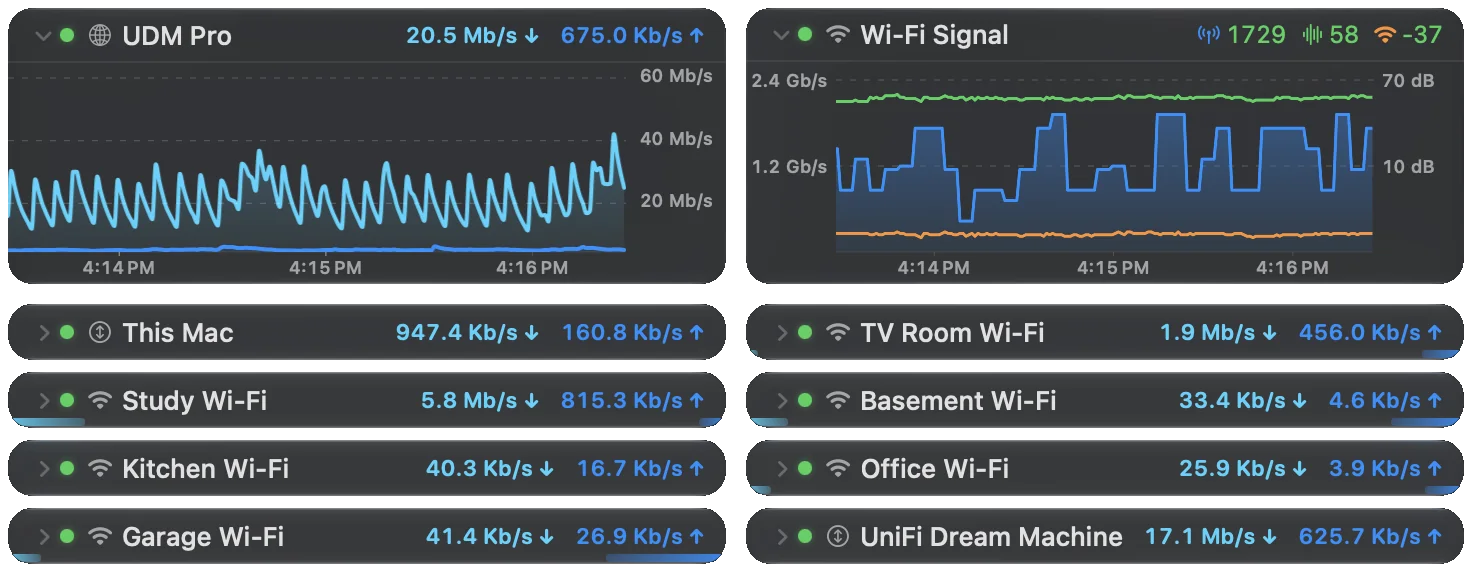
- Run the setup assistant. When PeakHour first opens, it looks for your router over UPnP and sets up monitoring for the devices it finds.
- Check the connection path. The Internet Dashboard shows each link, from your Mac to the router to your ISP and on to the internet, with live latency and bandwidth for each one. That way you can see where a slowdown starts. Packet loss is reported over a rolling 5-minute window.
- Set your plan’s speed. Enter your plan’s maximum download and upload so the bandwidth graphs show how close you get.
- Schedule speed tests. Have PeakHour run Apple’s network quality test every hour, every 6 or 12 hours, or daily, and again when your network changes.
- Set a data cap, if your plan has one. Under Usage, set your quota and the day your billing cycle resets. See the router and ISP monitor for more on monitoring through the router.
7. Set up alerts
A monitor you have to remember to check isn’t much use. In PeakHour’s notification settings, turn on:
- Router becomes unreachable: your Mac has lost the router, which is usually a Wi-Fi or local problem.
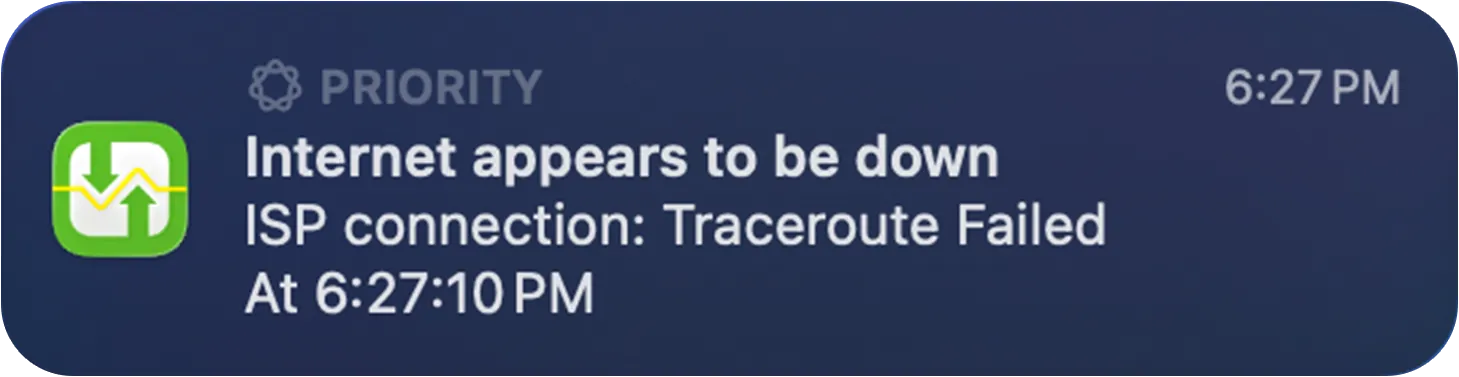
- Internet becomes unreachable: the router is fine but the internet isn’t, which points to your line or ISP.
You’ll get a notification when the connection drops and another when it comes back. If you’ve set a data cap, add usage alerts at, say, 75% and 90%. Each one can show a notification, send an email or run a script.
8. Keep the history
History is what turns “the internet was bad last night” into evidence. PeakHour’s History window keeps bandwidth and latency over weeks and months, and marks each outage with how long it lasted. For your own records, or to attach to a support ticket, click Export to save a CSV file, or turn on CSV Logging for a monitor to write its readings to a file every minute or hour.
To check the dashboard from your phone or another computer on your network, turn on PeakHour Remote and set a username and password. Remote uses plain HTTP, so keep it on your local network. From outside, connect through a VPN, or put it behind a reverse proxy that adds HTTPS, such as Tailscale Serve.
9. Add specialist tools only if you need them
These tools answer different questions from a network monitor. Install them for a specific job, not by default:
- Per-app connections and blocking: Little Snitch (paid) or LuLu (free, open source) show which app is connecting to which server, and let you block it. See Little Snitch vs PeakHour for how they differ.
- Packet capture: Wireshark records and decodes individual packets. On a Mac, install the ChmodBPF package that comes with it so it can capture live traffic. It’s the right tool for a protocol problem, but it’s too much detail for everyday monitoring.
Your setup at a glance
| Layer | Tool | Runs all the time | Keeps history | Cost |
|---|---|---|---|---|
| Speed baseline | networkQuality |
No | No | Free, built in |
| Per-app traffic | Activity Monitor | No | No | Free, built in |
| Wi-Fi | Wireless Diagnostics | No | No | Free, built in |
| Whole network, latency, outages, usage | PeakHour | Yes | Yes | 7-day free trial, then $19.99/year or $59.99 once |
| Per-app firewall | Little Snitch / LuLu | Yes | Partly | Paid / free |
| Packet capture | Wireshark | No | Saved captures only | Free |
FAQs
How do I monitor network traffic on my Mac?
Open Activity Monitor (Applications → Utilities) and choose the Network tab. It lists every app with the data it has sent and received, and shows live totals at the bottom of the window. It only counts since your Mac last started up and keeps no history, so for long-term monitoring you need an app such as PeakHour.
Does macOS have a built-in network monitor?
Yes, a few basic ones. Activity Monitor shows traffic per app, Wireless Diagnostics checks your Wi-Fi, and Terminal has networkQuality, ping and netstat. None of them run in the background, keep history or alert you when the connection drops.
Can I monitor every device on my network from a Mac?
Yes, through your router. Turn on UPnP or SNMP on the router and a monitor such as PeakHour can read its traffic counters, which cover every device that uses the connection. Devices that support SNMP, such as other Macs, PCs and NAS drives, can also be monitored one by one.
Do I need Wireshark to monitor my network?
Usually not. Wireshark captures and decodes individual packets, which is ideal for debugging a specific protocol problem but too much detail for everyday monitoring. For speed, usage, latency and outages, a monitor that keeps history is the better tool.
Is it safe to view PeakHour from my phone?
On your home network, yes. Turn on PeakHour Remote and set a username and password. It serves the dashboard over plain HTTP, so don't open it to the internet. To check it from outside, connect through a VPN, or put it behind a reverse proxy such as Tailscale Serve that adds HTTPS.