Network monitor for Mac
The network monitor for Mac that shows where the problem is
PeakHour watches your connection from your Mac to your router, your ISP and the wider internet, all the time. When something slows down or drops, you see where and when it happened.
Free to download, with a free trial. Requires macOS 14.6 or later.
Activity Monitor is a snapshot. PeakHour is a monitor.
macOS already includes Activity Monitor. Its Network tab lists how much data each app has sent and received since you last restarted. That's useful for a quick check, but it stops there: it doesn't keep history, doesn't measure latency or packet loss, can't see your router or ISP, and won't tell you when your internet goes down.
| Capability | Activity Monitor | PeakHour |
|---|---|---|
| Live bandwidth | This Mac only | This Mac, your router, and other devices on your network |
| Latency, jitter, packet loss | — | Per hop: router, ISP, internet |
| Outage alerts | — | Notified when it drops and when it's back |
| Wi-Fi alerts | — | Weak signal, interference or a slow link |
| History | Since last restart | Long-term bandwidth, latency and downtime charts |
| Menu bar | — | Live speed, latency and status |
See the whole path, not just your Mac
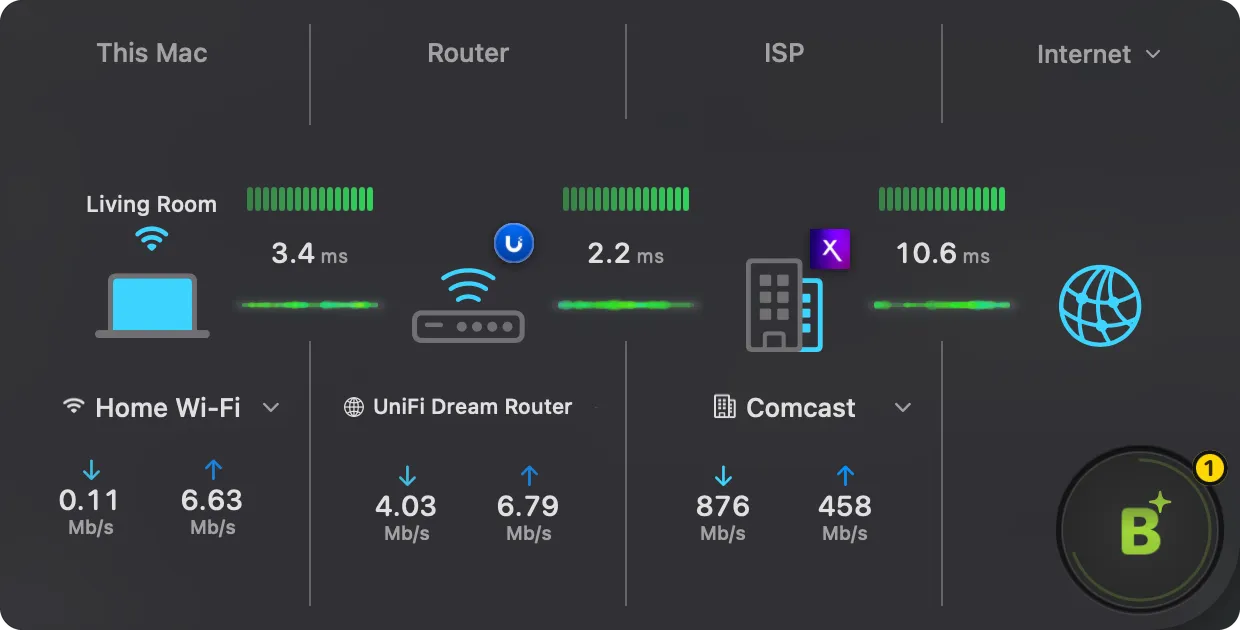
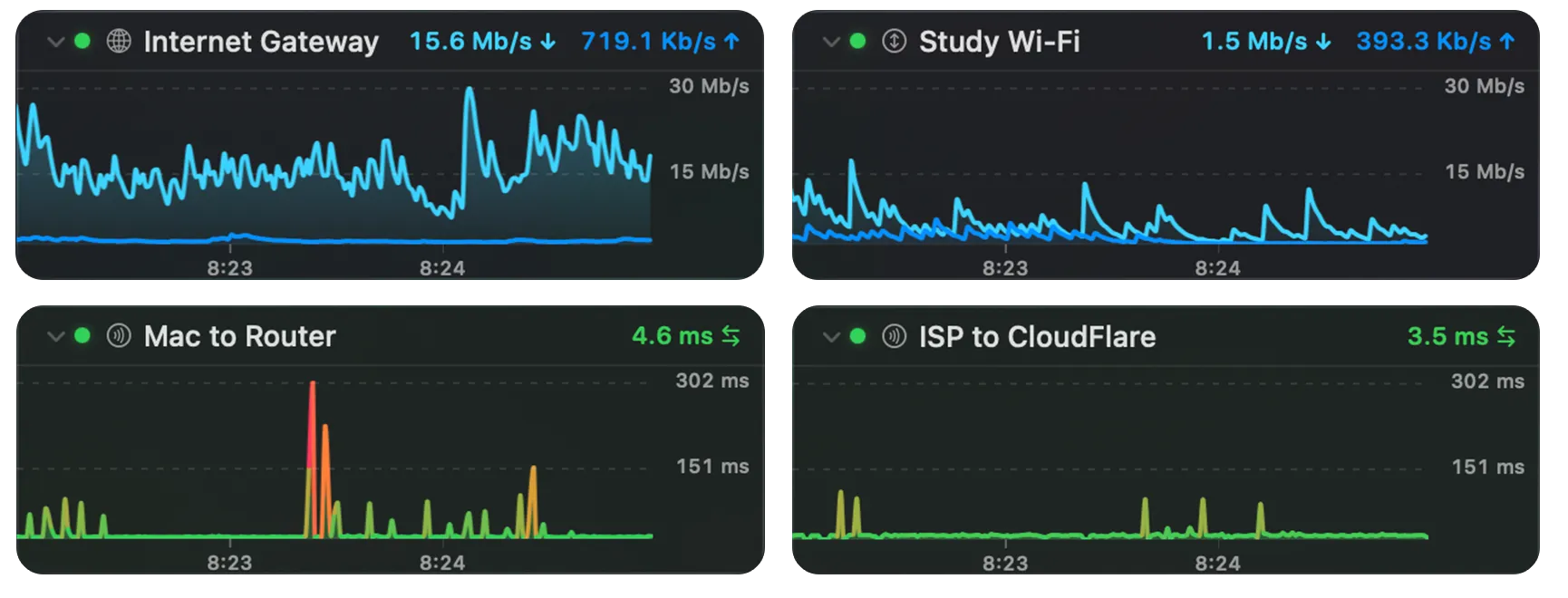
Most slowdowns aren't caused by your Mac. PeakHour's Internet Dashboard lays out every step between your Mac and the internet, including Wi-Fi, your router, your ISP's gateway and the hosts beyond it, and measures each one live. Latency-coloured connection lines show where things go wrong, whether it's weak Wi-Fi, a congested router or trouble at your ISP.
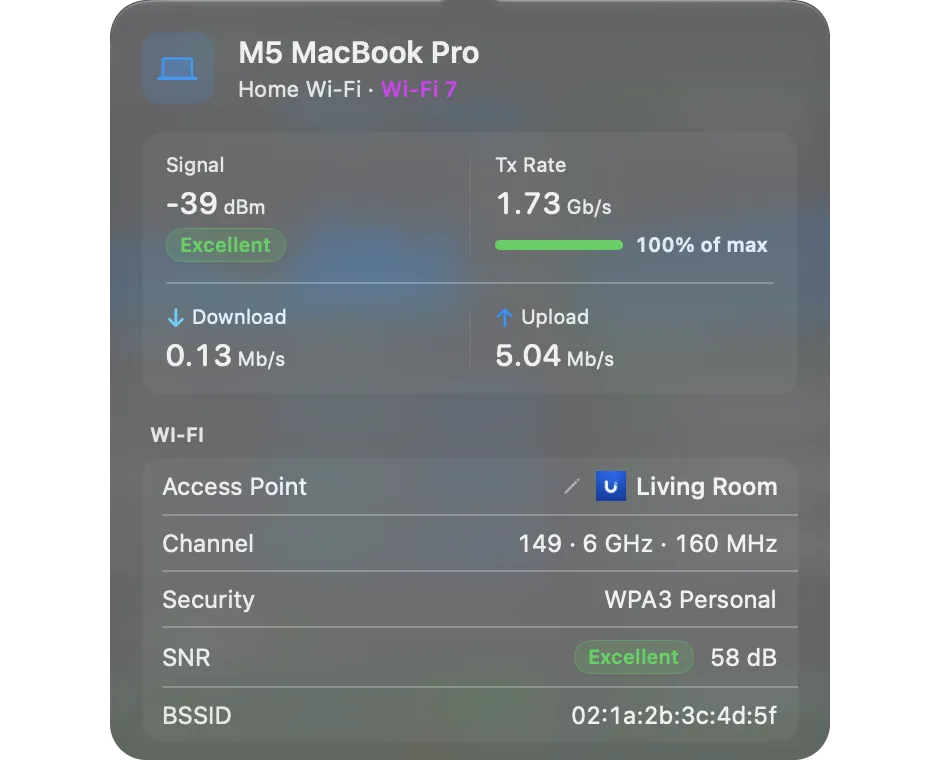
Click This Mac, Router or ISP for its details card. This Mac rates your Wi-Fi signal and signal-to-noise ratio and shows your Tx rate as a share of its maximum. The router card lists its addresses, and the ISP card shows your last speed test.
An internet connection monitor that tells you when it drops
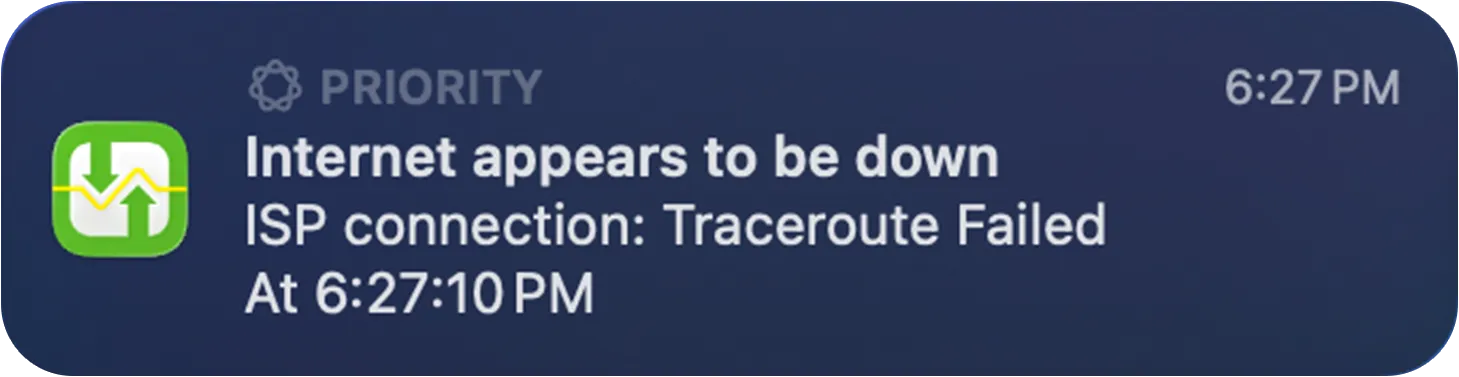
PeakHour pings your router, your ISP and internet hosts continuously and measures latency, jitter and packet loss on each. If your connection drops, you get a notification straight away, and another when it comes back, so you know how long it lasted. Critical alerts can break through Focus modes when you need them to.
Wi-Fi has its own alerts. Turn on Wi-Fi issues, and PeakHour tells you when a weak signal, interference or a slow link lasts two minutes.
It recovers on its own, too. PeakHour falls back to TCP and HTTP probes when ping is blocked, and it picks back up after sleep, Wi-Fi changes and outages without you touching it.

Always in your menu bar
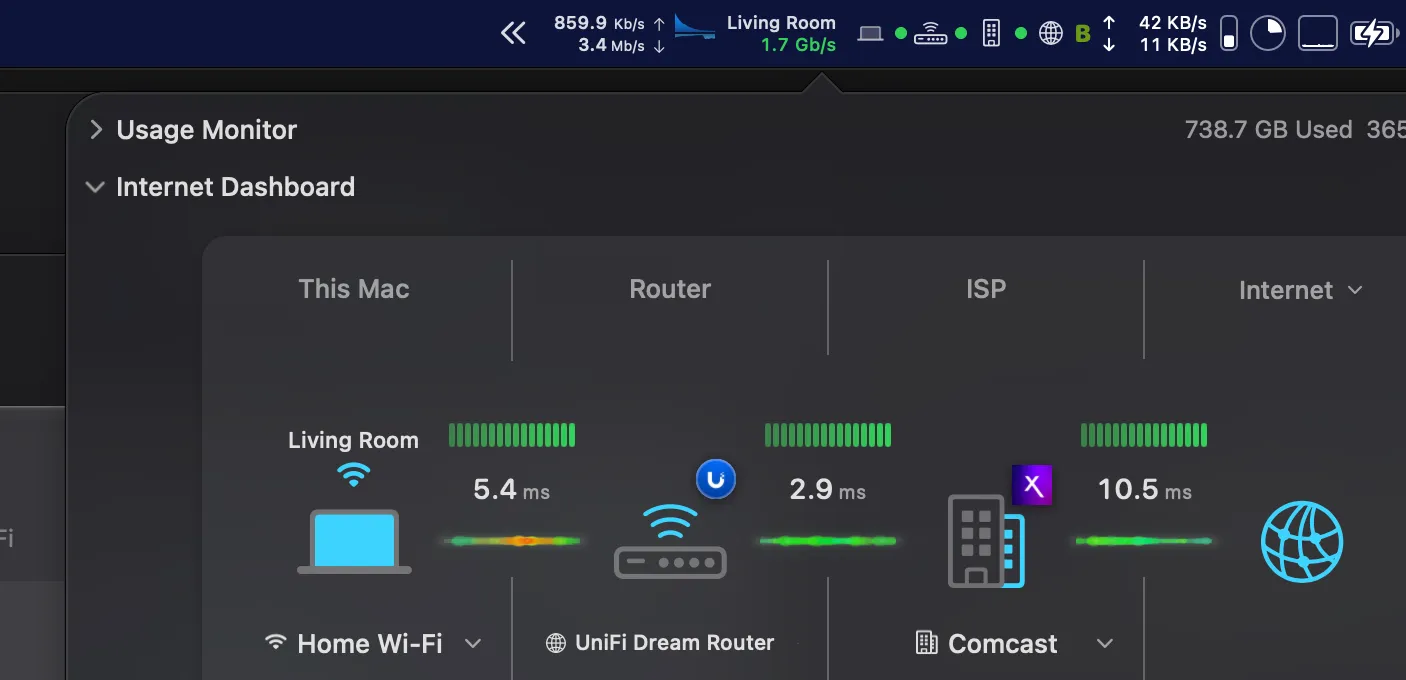
Live upload and download speed, latency and connection status sit in your menu bar, and you can split them into separate items. PeakHour works with Bartender and Ice. Click once for the full dashboard or to run a speed test.
History that proves it
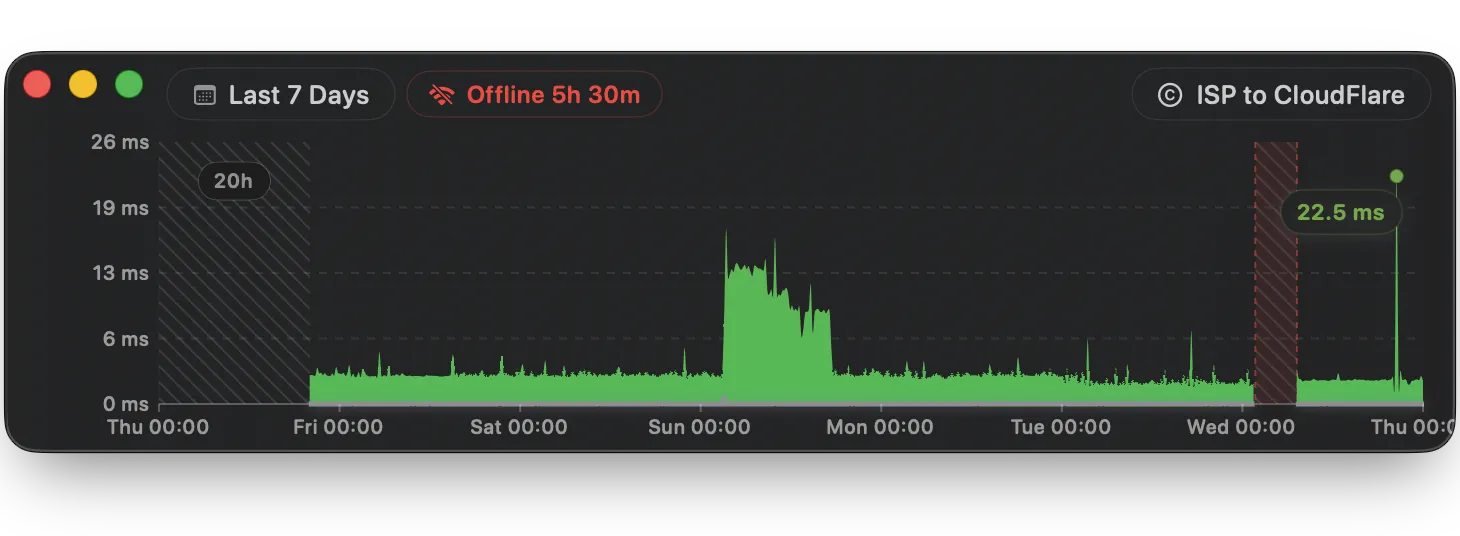
Intermittent problems are hard to explain to an ISP. PeakHour keeps long-term bandwidth, latency and downtime history, so you can point to the exact nights your connection dropped or the hours latency spiked.
A plain-English second opinion
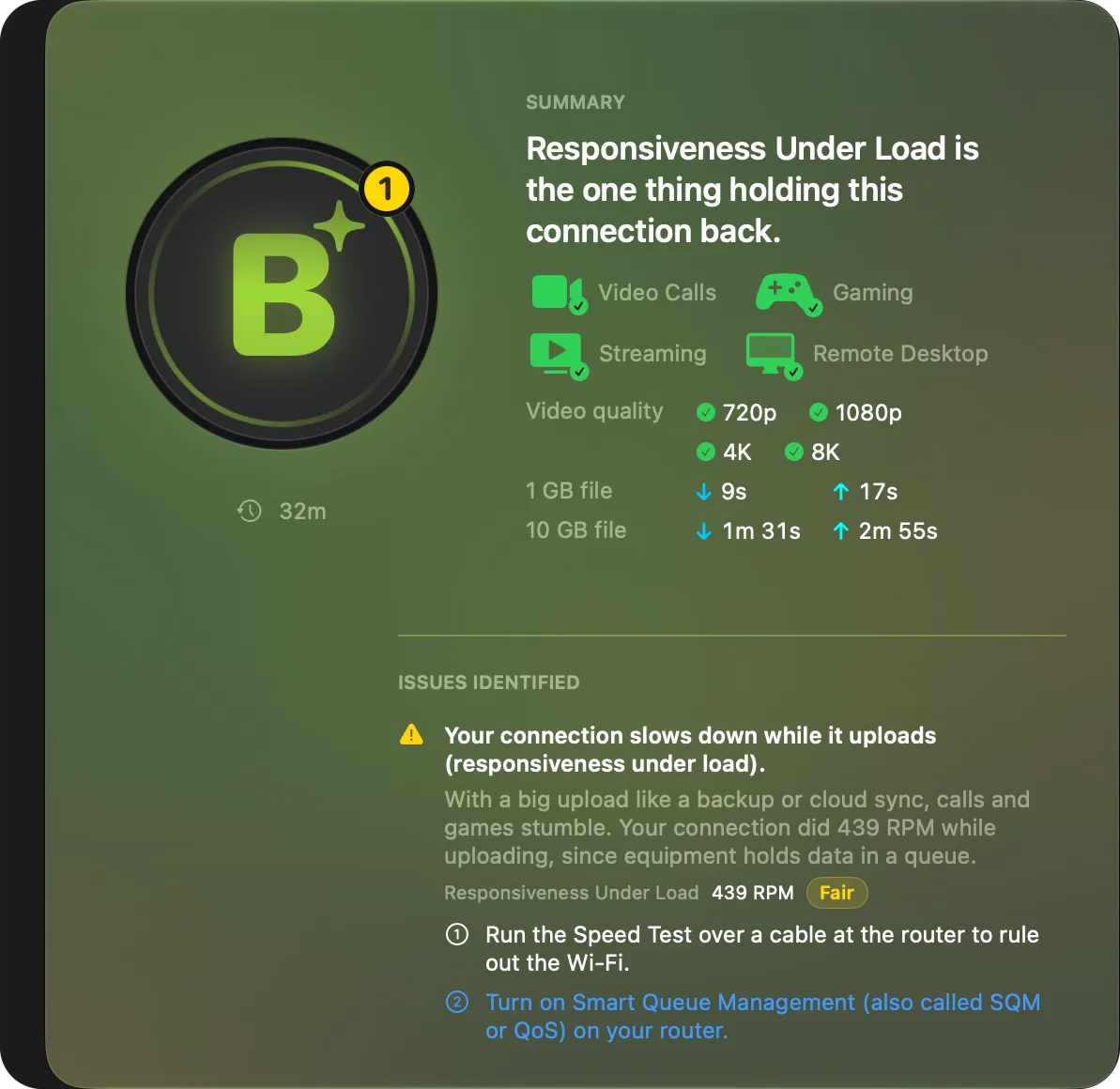
The PeakHour Advisor grades your connection with a letter score and explains what's wrong in plain language, such as "packet loss is starting at your ISP, not your Wi-Fi". On macOS 26 or later it has its own window (Window > PeakHour Advisor, ⌥⌘A):
- Your Network: your grade, checks for video calls, gaming, streaming and remote desktop, and what your measured speeds make possible. A path diagram shows the latency of each link and where a problem starts. Each issue links to a help article.
- The Internet: a map of the sites you monitor, and the route to each one, hop by hop.
- Speed Test: the full report of your last speed test, with idle latency, latency under load, and a check against your internet plan.
- History: your grade every 30 seconds and a year of speed tests, with filters and CSV export.
- Report: the full connection report with its routes, to copy or export.
The Advisor writes its explanations on your Mac. On macOS 27 with Apple Intelligence, you can choose Private Cloud Compute instead, and ask questions about your network in plain language.
What PeakHour can monitor
- Your internet connection: latency, jitter and packet loss to your router, ISP and any internet host. A new latency monitor starts with a choice: ISP to Internet, One Host or Custom. Pick a site from the list, including AI services such as Claude, ChatGPT and Gemini, and the monitor is named after it.
- Your router's bandwidth: live throughput and data usage from routers that support UPnP or SNMP. Most home routers support UPnP. See the router & ISP monitor.
- Other devices: Macs, Windows and Linux PCs, NAS boxes, firewalls, switches and access points that support SNMP. PeakHour Enabler sets up other Macs for you.
- This Mac: its own network interfaces, with no router support needed.
- Speed tests that include Apple's RPM responsiveness score and latency under load, on demand or on a schedule. Enter your plan speeds to see the share of your plan you get.
PeakHour measures throughput by device and interface. It isn't a packet sniffer and doesn't break traffic down by app or website. For bandwidth and data caps, see the bandwidth & data usage monitor for Mac.
Frequently asked questions
How do I monitor network activity on my Mac?
Open Activity Monitor (Applications → Utilities) and choose the Network tab to see data sent and received by each app since your last restart. For continuous monitoring with history, latency, packet loss and outage alerts, install a network monitor app such as PeakHour from the Mac App Store.
What is the best network monitor for Mac?
It depends on what you need to see. For per-app firewall-style control, Little Snitch is the usual choice. To monitor your internet connection, Wi-Fi, router and ISP over time, with bandwidth, latency, packet loss, outage alerts and history, PeakHour is built specifically for that and runs natively in the macOS menu bar.
How can I monitor my internet connection for drops?
Use a monitor that checks your connection continuously and logs outages. PeakHour pings your router, your ISP and internet hosts around the clock, notifies you the moment the connection drops and again when it's restored, and keeps a downtime history you can show your ISP.
Can PeakHour warn me about a bad Wi-Fi connection?
Yes. Turn on Wi-Fi issues in Settings > Dashboard > Notifications. PeakHour then notifies you when a weak signal (below −75 dBm), interference (a signal-to-noise ratio under 20 dB) or a slow link (under 50 Mb/s) lasts 2 minutes. It sends at most one alert every 30 minutes for each issue.
Can PeakHour tell whether the problem is my Wi-Fi, my router or my ISP?
Yes. PeakHour measures latency and packet loss separately for each hop between your Mac and the internet. If the losses start at your ISP's gateway rather than at your router, the Internet Dashboard shows that, and the PeakHour Advisor explains it in plain language. Enter your internet plan, and the Advisor's Speed Test page also tells you whether this Mac's Wi-Fi or cable link limits your speed. On Wi-Fi, when responsiveness under load is low, the Advisor's first step is a speed test over a cable at the router, to rule out the Wi-Fi.
When an AI agent or chatbot is slow, is it my internet connection?
PeakHour can tell you. Add a latency monitor for the service: the site list has an AI Services group with Claude, ChatGPT, Gemini and others. If latency and packet loss to the service stay low while it is slow, the delay is on the service's side. If the losses start at your Wi-Fi, router or ISP, the Internet Dashboard shows where.
Does the PeakHour Advisor send my network data anywhere?
Not by default. The Advisor writes its explanations on your Mac. On macOS 27 with Apple Intelligence, you can choose Private Cloud Compute, which also lets you ask questions about your network. Then only your measurements go to Apple's servers, which don't keep them. Your Wi-Fi name, your Mac's name and the sites you added stay on your Mac.
Does PeakHour show which apps are using my network?
No. PeakHour measures throughput for your Mac, your router and other network devices, plus latency and packet loss. For a per-app view, use Activity Monitor's Network tab alongside it.
Is PeakHour free?
PeakHour is free to download from the Mac App Store and includes a free trial. After that, it's $19.99 a year or a one-time purchase of $59.99.
What macOS version does PeakHour need?
macOS 14.6 Sonoma or later, on Apple silicon or Intel Macs. The PeakHour Advisor window needs macOS 26 or later.