Prices are in USD, checked against each developer’s site and the Mac App Store in September 2026.
Short answer: For monitoring your whole internet connection (every device’s bandwidth, latency, packet loss and outages), PeakHour is the most complete Mac option, at $19.99/year or $59.99 lifetime on the Mac App Store. For a quick look at speed alongside CPU and memory, iStat Menus ($11.99) is excellent. To see and block what each app sends, get Little Snitch ($59). To cap data on a hotspot, use TripMode. For a free, open-source menu bar meter, use Stats.
Quick comparison
| Tool | Best for | Router-wide | Per-app traffic | Latency & loss | Data caps | App Store | Price |
|---|---|---|---|---|---|---|---|
| PeakHour 6 | Monitoring connection quality and bandwidth | ✅ SNMP / UPnP | — | ✅ with history | ✅ alerts | ✅ | $19.99/yr or $59.99 lifetime (7-day trial) |
| iStat Menus 7 | Menu bar system stats | — | ✅ top apps | Ping only | — | ✅ | $11.99 (family $14.99) |
| Little Snitch 6 | Per-app firewall and traffic | — | ✅ | — | — | Mini only | $59 single license |
| TripMode | Saving data on hotspots | — | ✅ with blocking | — | ✅ limits and auto-block | ✅ | $14.99/yr or $39.99 lifetime (7-day trial) |
| Stats | Free, open-source menu bar | — | — | — | — | — (GitHub / Homebrew) | Free |
“—” means the developer doesn’t list the feature.
1. PeakHour 6: best for monitoring your whole internet connection
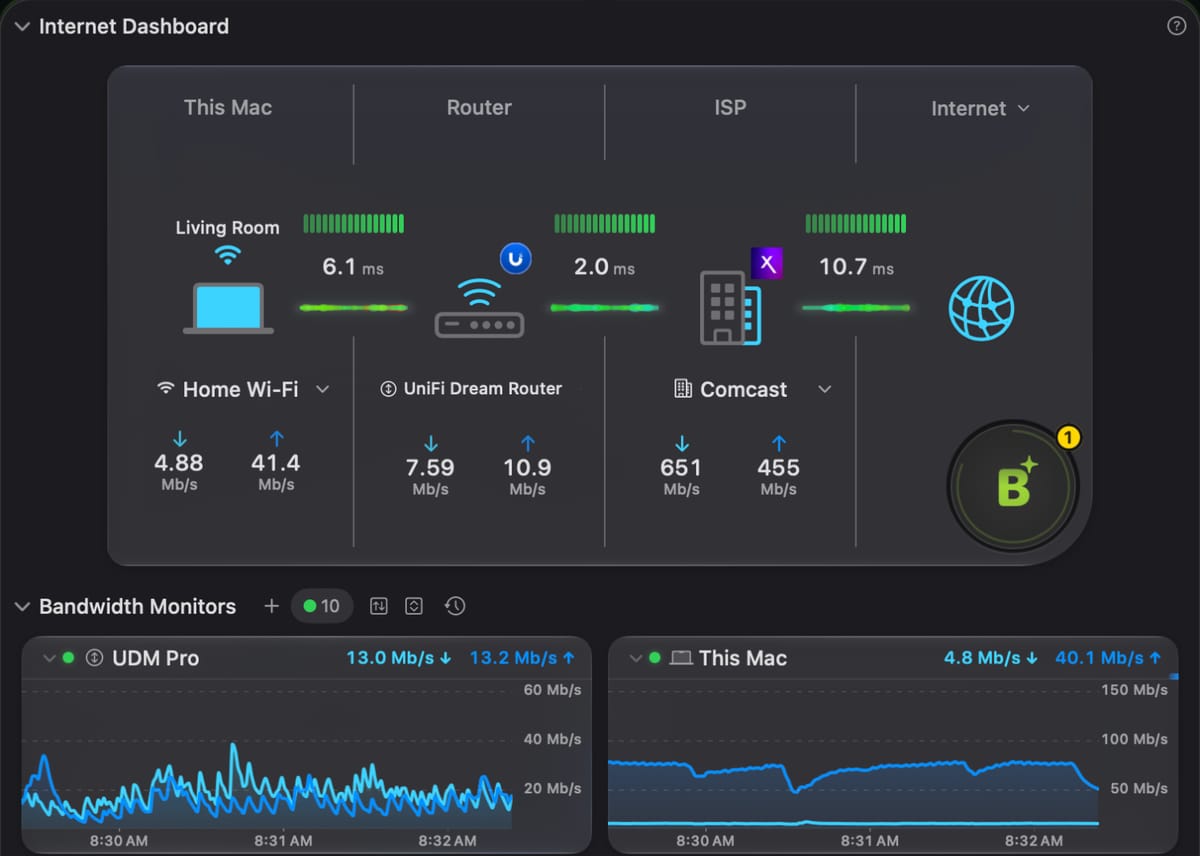
PeakHour is built for one job: showing you exactly what your internet connection is doing. It reads bandwidth from your router over SNMP or UPnP, so you see traffic from every device on the network, not only your Mac. It also tracks latency, jitter and packet loss continuously, and keeps the history.
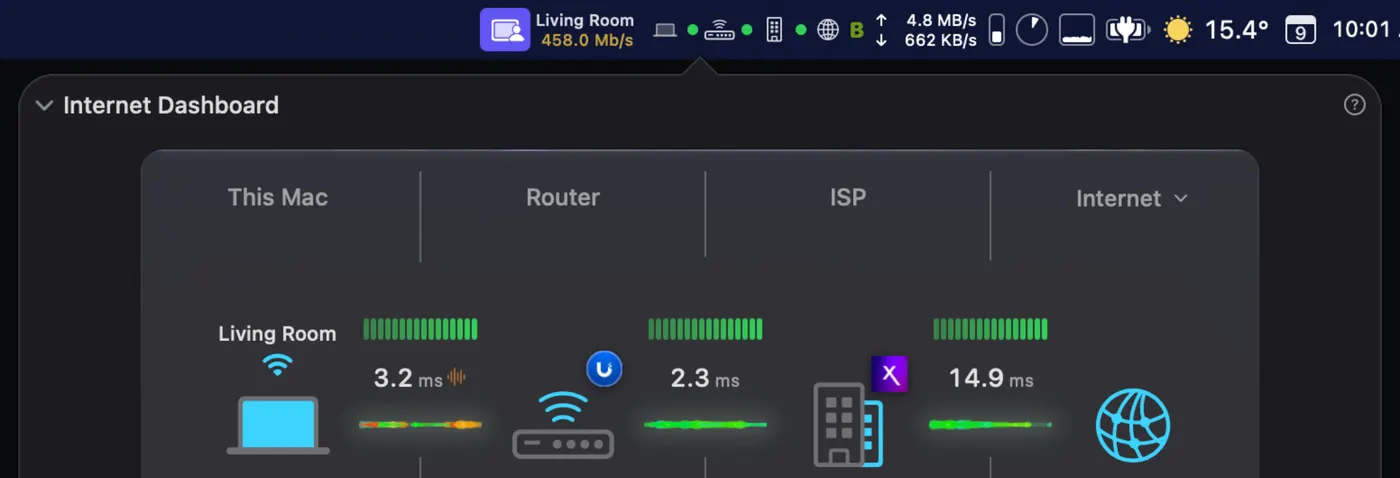
- Live bandwidth and latency in the menu bar, with long-term history charts
- Hop-by-hop path monitoring, so you can tell whether a problem is on your Wi-Fi, your router or your ISP
- Alerts when the connection drops and when it comes back, plus optional alerts for weak or slow Wi-Fi
- Monthly usage tracking with data-cap alerts by notification or email
- Speed and responsiveness (RPM) tests that show the share of your internet plan you get, Wi-Fi signal and channel, ISP details
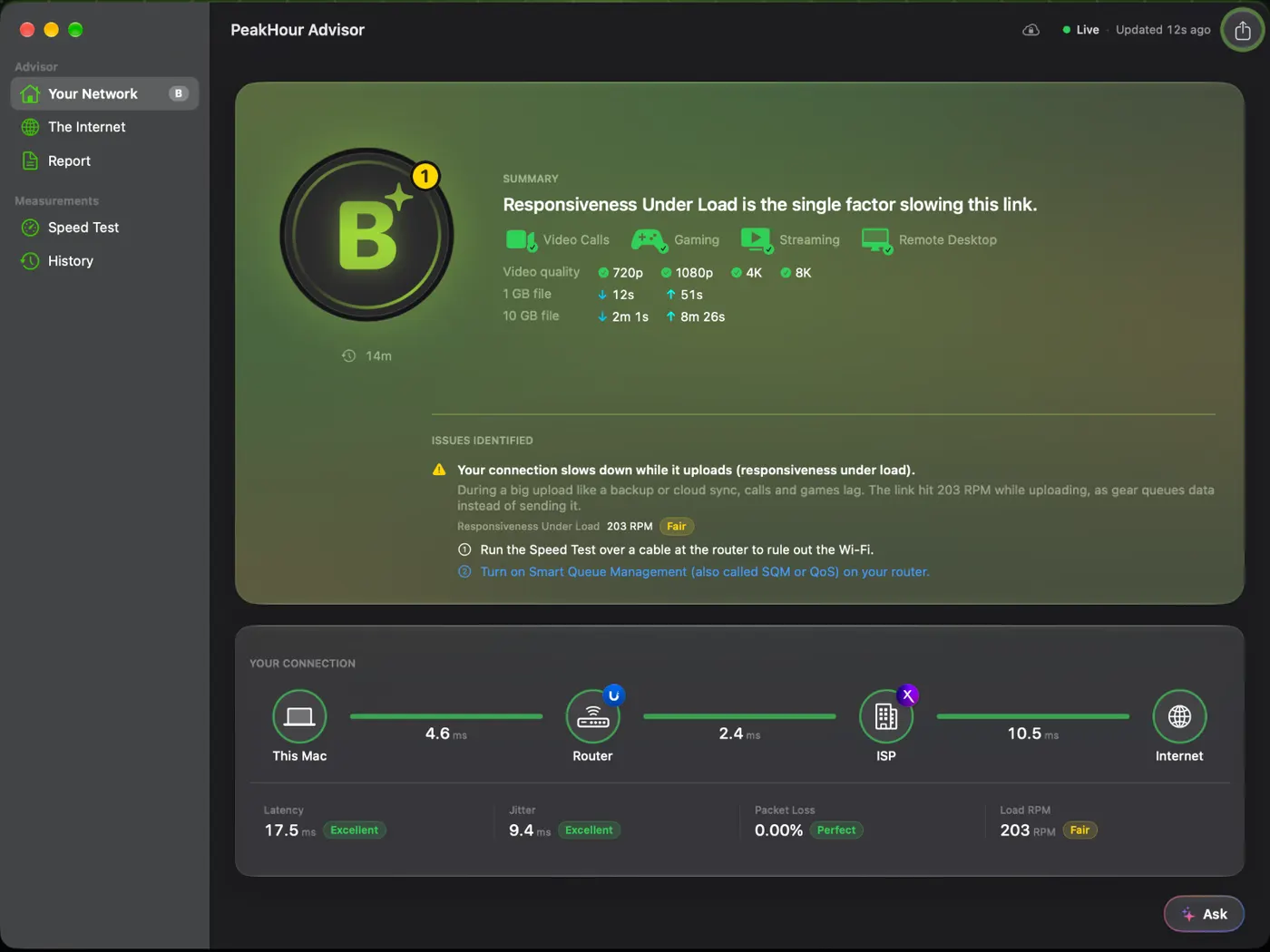
- The PeakHour Advisor (macOS 26+), which gives your connection a letter grade. In PeakHour 6.1 it has its own window that checks whether your connection is good enough for video calls, gaming, streaming and remote desktop, and names the one factor holding it back, with steps to fix it.
- Remote access and iCloud sync across multiple Macs
As Glenn Fleishman wrote in Macworld, PeakHour “offers incredible bandwidth tracking at an absurdly low price for the household and small-business network administrator”.
Price: 7-day free trial, then $19.99/year or $59.99 lifetime. Requires macOS 14.6+. Not for: blocking app connections, or per-app traffic breakdowns. Use Little Snitch or TripMode for those. Download on the Mac App Store · PeakHour as a network monitor for Mac · How real-time monitoring works
2. iStat Menus 7: best all-round menu bar monitor
Bjango’s iStat Menus covers the whole Mac: CPU, GPU, memory, disks, sensors and battery. Its network section shows current bandwidth and history graphs, a breakdown of the top apps, public and private IP addresses, a ping reading and a connectivity indicator. It can also notify you when you go offline or your public IP changes.
Price: $11.99 single, $14.99 family pack (up to 5). Also on the Mac App Store ($11.99) and Setapp (from $14.99/month). 14-day trial. Requires macOS 11+ (the App Store version needs 14.0+). Not for: router-level bandwidth, packet loss history or data caps, none of which are listed. iStat Menus vs PeakHour →
3. Little Snitch 6: best for per-app traffic and blocking
Objective Development’s Little Snitch is a firewall at heart. It alerts you when an app connects and lets you allow or deny it. Its Network Monitor groups traffic by app, domain or country on a world map and keeps up to 12 months of traffic history.
Price: $59 single, $115 family, $239 for 5 Macs. It’s a perpetual license, and major upgrades are paid. Demo mode is free. Requires macOS 14+. Sold directly by the developer; Little Snitch Mini (free monitoring, subscription for blocking) is on the Mac App Store. Not for: whole-network bandwidth or connection quality monitoring. Little Snitch vs PeakHour →
4. TripMode: best for staying under a data limit
TripMode is for when you’re on a phone hotspot or a metered connection. It shows usage per app and lets you block apps from using data. You can set data limits that warn you and then block automatically, and it recognises hotspots automatically.
Price: free download with a 7-day trial, then $14.99/year or $39.99 lifetime (US App Store prices; the App Store also shows higher tiers). Also on Setapp. Requires macOS 11+.
5. Stats: best free option
Stats is a free, open-source (MIT) menu bar monitor that’s updated almost weekly. Its network module shows live upload and download speed and your public IP, alongside CPU, GPU, RAM, disk and sensors. It collects no telemetry.
Price: free, from GitHub or brew install stats. Requires macOS 12+.
Also worth a look
- Bandwidth+ (free, optional tips): a minimal menu bar usage meter that tracks hotspot and tethered iPhone usage. Updated infrequently (last update December 2024).
- Network Monitor+ (free; Pro $3.99/month or $12.99 lifetime): a health score, ping, jitter and packet loss. It’s a multi-platform app that needs macOS 26 and an Apple silicon Mac.
How to choose
- “My internet keeps dropping or slowing down.” You need connection quality history and outage alerts: PeakHour. The troubleshooting guide walks through what to check first.
- “Who is using all the bandwidth at home?” You need router-level monitoring: PeakHour.
- “Which app is using data?” Little Snitch, TripMode or iStat Menus.
- “I’m on a capped plan.” PeakHour for home broadband caps, TripMode for hotspots.
- “I just want a speed number in the menu bar.” Stats (free) or iStat Menus.
For a closer look at one rival, see all our comparisons, including where the other app is the better choice.
Sources
Checked September 25, 2026.
- PeakHour: Mac App Store
- iStat Menus: bjango.com, Mac App Store and Bjango’s checkout
- Little Snitch: pricing, features, license terms
- TripMode: Mac App Store and tripmode.ch
- Stats: GitHub (version 3.0.17, September 20, 2026)
- Bandwidth+: Mac App Store
- Network Monitor+: App Store
FAQs
What features should I look for in a bandwidth monitoring tool for Mac?
Start with what you need to see. For your whole home network, look for router monitoring over SNMP or UPnP; a tool that only watches your Mac can't see the TV or the other laptops. For intermittent problems, look for latency and packet loss history rather than a one-off speed test. If you're on a capped plan, look for monthly usage tracking with alerts. If you care which app is using data, you need per-app traffic, which Little Snitch, TripMode and iStat Menus provide.
What makes PeakHour stand out as a bandwidth monitoring tool for Mac users?
PeakHour monitors the internet connection itself, not just your Mac. It reads bandwidth for every device from your router, tracks latency, jitter and packet loss continuously with history, shows where along the path a problem is, and alerts you when the connection drops and when it comes back. It's on the Mac App Store with a 7-day free trial, then $19.99/year or $59.99 lifetime.
Is there a free bandwidth monitor for Mac?
Yes. Stats is free and open source, and Bandwidth+ is free with optional tips. Both show your Mac's own traffic. Neither lists router-level monitoring or packet loss tracking.
Can a Mac monitor bandwidth for my whole network?
Only if it can read your router's traffic counters. PeakHour does this over SNMP or UPnP, which most home routers support. SNMP vs UPnP explained.