Quick answer: To check data usage on a Mac, open Activity Monitor, choose the Network tab and read Data received and Data sent at the bottom. Sort by Sent Bytes or Rcvd Bytes to see which apps use the most. Those totals reset every time your Mac restarts, and macOS has no monthly view. To see monthly usage, or usage for every device on your network, you need a usage monitor such as PeakHour. It counts across restarts, resets on your billing day and alerts you before you hit your data cap.
Check data usage with Activity Monitor
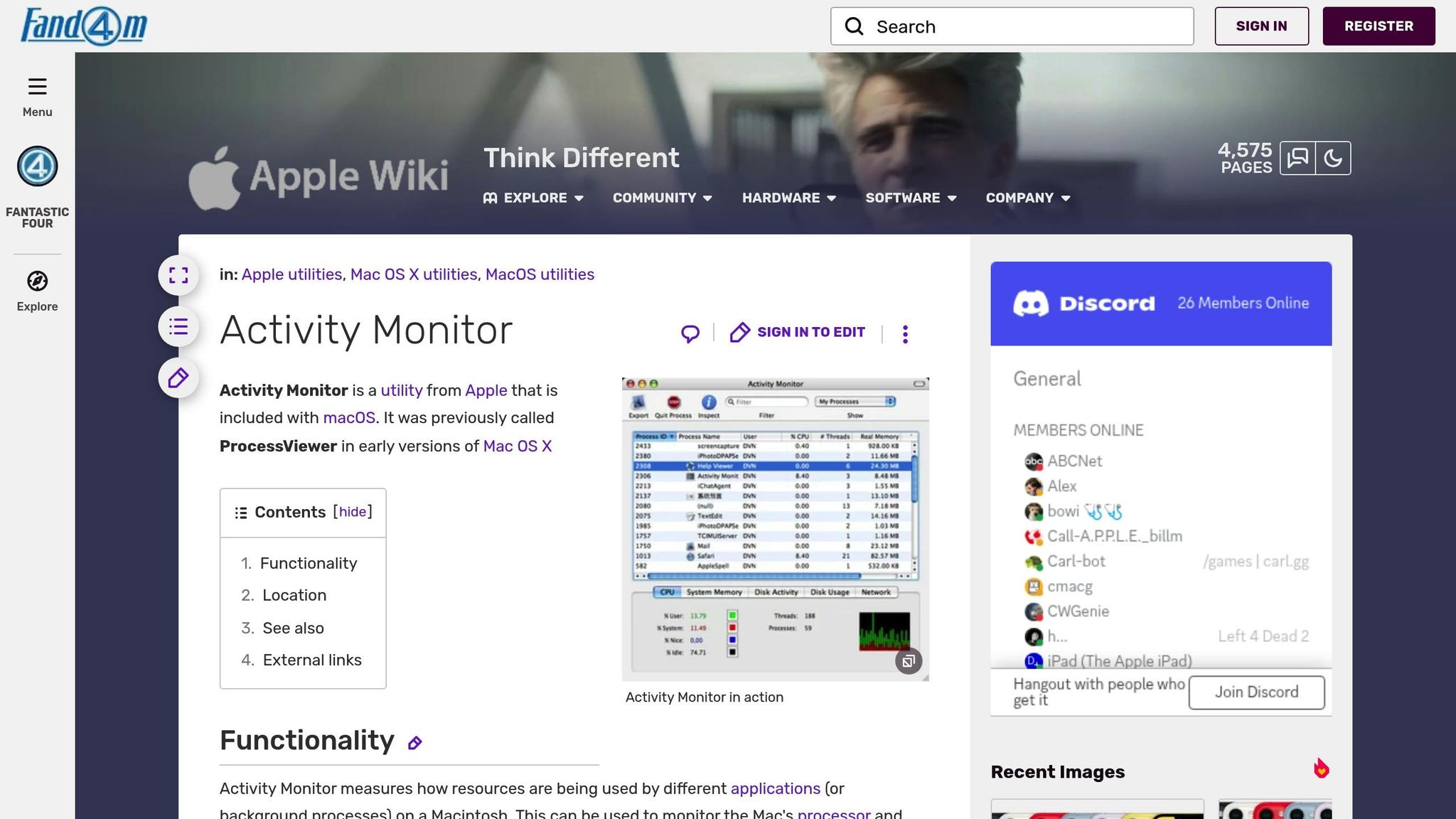
Activity Monitor is built into macOS and is the quickest way to see what’s using your connection right now.
- Open Activity Monitor. It’s in Applications → Utilities, or press Command-Space and type “Activity Monitor”.
- Click the Network tab.
- Look at the bottom of the window:
- Data received and Data sent: the total since your Mac last started up.
- Data received/sec and Data sent/sec: what’s flowing right now.
- Packets in and Packets out: the same totals counted in packets.
- To see which apps use the most, click the Sent Bytes or Rcvd Bytes column header to sort.
You can also choose View → Dock Icon → Show Network Usage to keep a live network graph on Activity Monitor’s Dock icon.
What Activity Monitor can’t do: everything starts from zero at each restart, apps that have quit disappear from the list, and there’s no history. It only covers this Mac, not the other devices on your network. It’s useful for “what’s using my bandwidth right now?”, not for “how much have I used this month?”
Check data usage in Terminal
Two built-in commands give the same since-startup figures, and they’re handy for a quick copy-and-paste:
netstat -iblists every network interface with the bytes received (Ibytes) and sent (Obytes) since startup. Your Wi-Fi is usually en0.nettop -P -L 1prints one snapshot of data in and out for each running process.
Like Activity Monitor, these reset at every restart.
Why macOS can’t show monthly data usage
Your iPhone keeps a running total of cellular data. macOS doesn’t keep anything similar for Wi-Fi or Ethernet. Nothing in System Settings shows data used per day or per month, and none of the built-in tools keep a history across restarts.
That matters if:
- your ISP has a monthly data cap and charges for going over;
- you work from a mobile hotspot or a metered connection;
- you want to know whether a backup, sync or update is quietly using gigabytes.
There’s a second gap too: a Mac only sees its own traffic. If the TV, the game console and three phones share your connection, your Mac can’t tell you how much of the household’s cap they’ve used.
Track monthly usage with PeakHour
PeakHour is a Mac menu bar app that keeps counting where Activity Monitor stops. It measures usage on the device you’ve set as your internet gateway. That’s usually your router, so the total covers every device on your network, not just your Mac. PeakHour reads the router’s traffic counters over UPnP, which most home routers support, or SNMP.

Set it up to match your ISP’s bill
Open PeakHour Settings → Usage and:
- Turn on Enable Usage Monitoring.
- Under Billing Cycle, turn on Automatically Reset on Billing Date and pick your Reset Day (1st to 28th), so the count starts over when your ISP’s does.
- Choose Count Uploads Toward Usage if your ISP counts both directions. Some count downloads only.
- Under Quota, choose a Quota Type:
- Anytime: a single monthly allowance in GB.
- Peak / Off-Peak: separate allowances, with the off-peak start and end times your plan uses.
The Usage Monitor then shows how much you’ve used out of your quota, how much you can still use per day for the rest of the cycle, and how many days and hours are left before it resets.
Get alerted before you go over
Under Notifications, add a threshold for each warning you want, in GB, MB or as a percentage of your quota. A common setup is 50%, 75% and 90%. For each one, choose what happens:
- Notification: a macOS notification.
- Email: a message to any address, which is handy if the Mac is a home server you don’t sit at.
- Script: runs a script you choose, for example to pause a backup.
Look back over weeks and months
PeakHour keeps long-term bandwidth history, so you can zoom out to see which days or hours used the most. To work with the numbers yourself, click Export in the History window to save a CSV file, or turn on CSV Logging for a monitor to write its data to a file every minute or hour.
Using the numbers to cut your usage
When the usage report shows a spike, the usual suspects are:
- Cloud sync and backups: iCloud Drive, Photos, Dropbox, Google Drive and Time Machine to a network drive. Most let you pause syncing or limit bandwidth.
- Software updates: macOS, app and game updates can each run to several gigabytes. Install them on an off-peak allowance if you have one.
- Streaming quality: an hour of 4K video uses several times more data than the same hour in HD. Most streaming apps let you choose a lower quality.
- Other devices: if the router total is climbing but your Mac’s own usage isn’t, it’s something else on the network. Devices that support SNMP, such as other Macs, PCs and NAS drives, can be added to PeakHour so you can see which one it is.
If usage is fine but the connection feels slow, it’s a different problem. A network monitor for Mac shows where a slowdown starts; also see Slow internet on your Mac? How to find the cause and fix it, or run a free packet loss test.
Activity Monitor vs PeakHour
| Activity Monitor | PeakHour | |
|---|---|---|
| Data used since startup | Yes | Yes |
| Data used per app | Yes | No |
| Monthly total that survives restarts | No | Yes |
| Resets on your billing day | No | Yes |
| Counts every device on the network | No | Yes, from your router |
| Alerts at a threshold | No | Yes: notification, email or script |
| History and CSV export | No | Yes |
| Price | Free, built in | 7-day free trial, then $19.99/year or $59.99 once |
Use Activity Monitor to find out which app is busy right now. Use PeakHour to keep the monthly total and stay under your cap. They work well together.
FAQs
How do I check data usage on my Mac?
Open Activity Monitor (Applications → Utilities), choose the Network tab and look at Data received and Data sent at the bottom of the window. Sort by the Sent Bytes or Rcvd Bytes column to see which apps use the most. The numbers only count since your Mac last started up.
Can I see monthly data usage on a Mac?
Not with the tools built into macOS. Activity Monitor and Terminal's netstat and nettop only count since the last restart, and macOS keeps no history. For a monthly total you need a usage monitor such as PeakHour, which keeps counting across restarts and resets on your billing day.
Does Activity Monitor reset when I restart my Mac?
Yes. Activity Monitor's network figures start from zero every time your Mac starts up, and apps that quit drop off the list, so it can't tell you how much data you used last week or last month.
How do I check how much data my MacBook used on my iPhone's hotspot?
On the iPhone, open Settings → Cellular (or Mobile Data) and scroll to Personal Hotspot. It shows how much data devices used through the hotspot since you last reset the statistics. On the Mac, Activity Monitor shows what each app has used since startup.
How do I track data usage for every device on my network?
Your router sees all of it, so the usage has to come from the router. PeakHour reads your router's traffic counters over UPnP or SNMP and counts the whole connection against your monthly quota, including phones, TVs and other computers.
Can PeakHour show which app used the most data?
No. PeakHour counts usage for the whole connection, or per device for devices that support SNMP. For a per-app breakdown on your Mac, use Activity Monitor's Network tab.