Quick answer: To see bandwidth in real time on a Mac, open Activity Monitor’s Network tab or run
nettopin Terminal. Both show only your own Mac’s traffic. To watch live upload and download for your whole network, a monitor app has to read your router’s traffic counters. PeakHour does this from the menu bar and keeps the history.
Watch your Mac’s bandwidth with built-in tools
macOS has three ways to see live network traffic, with nothing to install.
Activity Monitor. Open it from Applications → Utilities and choose the Network tab. The list shows how much each app has sent and received, and the bottom of the window shows Data received/sec and Data sent/sec: your Mac’s live download and upload speed.
nettop. In Terminal, run:
nettop -P -d-P shows one line per app instead of every connection, and -d shows the change since the last update rather than running totals. Press q to quit.
netstat. For one interface, such as Wi-Fi (usually en0), this prints the bytes in and out every second:
netstat -w 1 -I en0These tools are fine for a quick look. They have three limits: they only see your Mac, they keep no history, and they stop when you close them.
Why your Mac only sees part of the picture
Your internet connection is shared. A TV streaming 4K, a console downloading an update, or a cloud backup on another computer all use bandwidth your Mac knows nothing about. If the connection feels slow, the cause is often on another device.
The one place that sees all of it is your router. Most routers keep a running count of the bytes that pass through them and will report it over UPnP (most home routers) or SNMP (most prosumer and business gear). A monitor app polls that count every second or so and turns it into live upload and download speed for the whole network. SNMP vs UPnP for network monitoring on a Mac explains the difference and which one to turn on.
Real-time bandwidth monitoring with PeakHour
PeakHour is a Mac app that does this continuously, from the menu bar. It needs macOS 14.6 or later.
Setting it up
- Download PeakHour from the Mac App Store and open it.
- The setup looks for your internet router over UPnP. If it finds nothing, turn on UPnP in your router’s settings (how to turn on UPnP) or add the router over SNMP instead.
- Choose what to monitor. Live data appears within a few seconds.
You can add more monitors at any time: other SNMP devices such as access points, NAS drives or other Macs, and your own Mac’s network interface, which works even if your router supports neither protocol.
Live upload and download in the menu bar
Each monitor can have its own menu bar item showing live download and upload speed. You can add a small graph and running totals, or combine everything into a single item. Readings update every second by default. You can change that in Settings → Display, from every half second to once a minute.
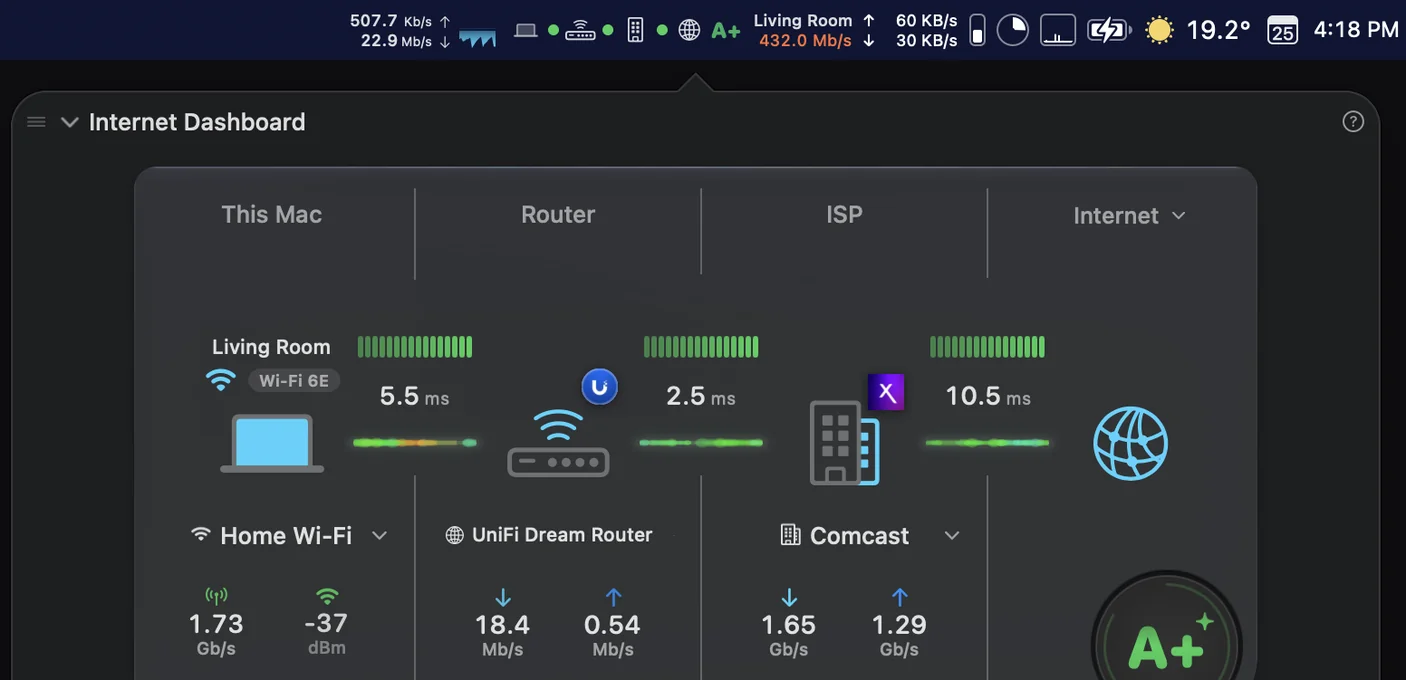
Click the menu bar item to see the Monitors list, with a live graph for each one. Set your plan’s speed under Available Bandwidth in each monitor’s settings, and PeakHour draws it as a line on the graph. Then you can see at a glance how close you are to the limit.
Bandwidth and latency together
High bandwidth use isn’t always the problem. A connection can have plenty of spare capacity and still feel slow because of latency or packet loss. PeakHour’s Internet Dashboard shows the path from your Mac to your router, your ISP and the internet. It shows throughput for your Mac and your router, and latency, jitter and packet loss for each link. You can add up to three internet hosts of your own, such as a video-call service or a game server.
The Dashboard can also run Apple’s network quality test on a schedule (every hour, 6 hours, 12 hours, day or week) and again when your network changes. That gives you regular speed and responsiveness readings without running a test by hand.
History and exporting
Live graphs show what’s happening now. The History window shows what happened while you weren’t looking. You can pick a range from the last six hours to the last year, or choose your own dates, and it can show your current usage period. That’s how you find out whether the slowdowns come every evening, or whether a backup runs at 2 a.m.
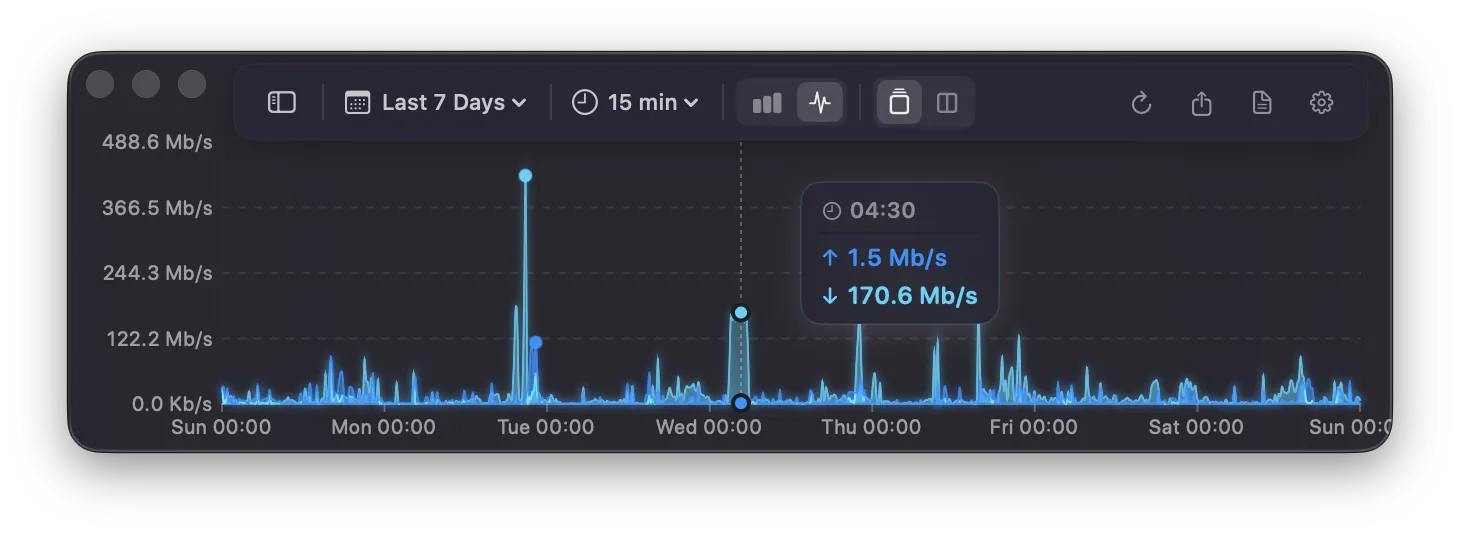
To keep the data, choose Export to CSV in the History window. To log continuously, turn on CSV Logging in a monitor’s settings: PeakHour writes a line every 1 to 60 minutes and can start a new file every day, week or month.
Notifications
PeakHour doesn’t alert you when bandwidth spikes or drops. It does send a notification when:
- your router or internet connection becomes unreachable, and when it’s restored
- a monitored device stops or starts responding, if you turn that on for it
- your data usage reaches a threshold you set. A threshold can also send an email or run a script
For usage limits, see Mac internet usage tracking: monthly report guide.
Checking from your phone
PeakHour Remote shows your monitors in a web browser on your phone or another computer. It’s off by default: turn it on in Settings → Remote, and turn off Restrict to this Mac only so other devices can connect. It’s served over plain HTTP with optional password protection. Use it on your home network, and use a VPN if you want to check in from outside. See the remote network monitoring guide.
Which should you use?
- “Is my Mac using the bandwidth right now?” Activity Monitor or
nettop. - “What’s using the connection, and is it every evening?” A monitor that reads your router and keeps history.
If it’s the second, try PeakHour’s bandwidth monitor for Mac. It’s free to try from the Mac App Store.
FAQs
How do I see my bandwidth in real time on a Mac?
Open Activity Monitor (Applications → Utilities), choose the Network tab, and watch Data received/sec and Data sent/sec at the bottom of the window. For a per-app view in Terminal, run nettop -P -d. Both show only this Mac's traffic. To see the whole network, use a monitor that reads your router, such as PeakHour.
Can I show upload and download speed in the Mac menu bar?
Not with macOS alone. A monitor app such as PeakHour adds live upload and download speed to the menu bar, with an optional mini graph and running totals. In PeakHour, each monitor can have its own menu bar item, or you can combine them into one.
How can I monitor bandwidth for my whole network from a Mac?
Read the traffic counters on your router. Most home routers report them over UPnP, and business routers usually over SNMP. PeakHour finds a UPnP router automatically and shows the live total for every device on your network, not just your Mac.
Can I see which device is using my bandwidth?
Only for devices you can monitor directly. A router's UPnP counters give one total for the whole connection. Devices that support SNMP, such as Macs, PCs, NAS drives and many access points, can each be added as a separate monitor in PeakHour to see their own traffic.
Does PeakHour alert me when bandwidth spikes?
No. PeakHour doesn't alert on throughput changes. It notifies you when your router or internet connection becomes unreachable and when it comes back, and when your data usage reaches thresholds you set. For bandwidth spikes, check the live graphs or the History window.
How often does PeakHour update its bandwidth readings?
Every second by default. You can change the refresh interval in Settings → Display, from every half second to once a minute.