Quick answer: To monitor your network remotely, run a network monitor on a Mac that stays on at home, then view it from another device. PeakHour Remote shows PeakHour’s live dashboard in any browser on your network, including your phone. To check in when you’re away, connect through a VPN such as Tailscale. Don’t open a port on your router.
Remote monitoring or remote control?
“Remote” means two different things for a Mac, and macOS has separate tools for each:
| You want to… | Use | What you get |
|---|---|---|
| See and control the Mac itself | Screen Sharing or Remote Management (built into macOS) | The Mac’s whole screen, keyboard and mouse |
| Check your network’s health from elsewhere | A network monitor with a web or phone view, such as PeakHour Remote | Live speed, latency, packet loss and outages, on any screen |
Screen Sharing works for monitoring too: share the screen and look at whatever monitor app is open. But it’s heavy on a phone, and you have to take over the whole Mac to glance at one number. A dedicated monitoring view is quicker. This guide covers both.
Option 1: Screen Sharing and Remote Management
Both are in System Settings → General → Sharing.
- Screen Sharing lets another Mac view and control this Mac’s screen. Apple’s guide: turn Screen Sharing on or off.
- Remote Management is the setting for Apple Remote Desktop. It adds administration on top of screen control: you can install software, run reports and manage several Macs. Apple’s guide: allow Apple Remote Desktop to access your Mac.
Neither one measures your network. They show you the Mac’s screen, so you still need a monitor app running on it.
Option 2: PeakHour Remote
PeakHour is a Mac menu bar app that monitors bandwidth, latency, packet loss and outages for your Mac, your router and your internet connection. PeakHour Remote is a web view of the same data, served by PeakHour from your Mac.
What you see
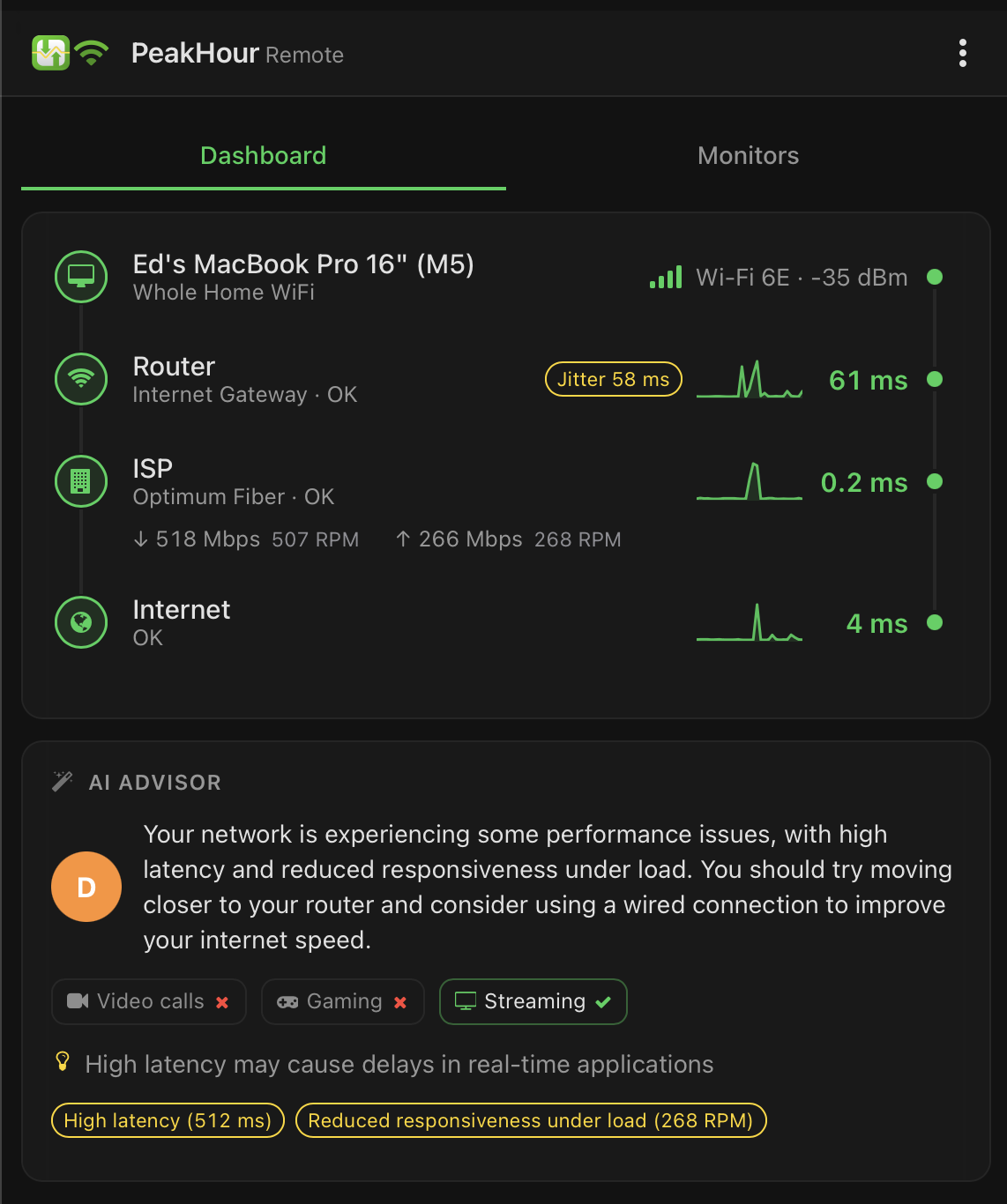
- Dashboard: the path from your Mac through your router and ISP to the internet, with the status and latency of each step. When PeakHour has run a network quality test, it shows the latest download and upload speed too. It’s the same view as PeakHour’s Internet Dashboard.
- Monitors: your bandwidth and latency monitors, each with its current readings. Tap one to open its graph.
The layout fits anything from a phone to a desktop browser. On an iPhone, open it in Safari, tap the Share button and choose Add to Home Screen. It then opens full screen like an app. The … menu in PeakHour Remote walks you through the same steps.
Setting it up
- In PeakHour, open Settings → Remote and turn on Enable PeakHour Remote.
- Turn off Restrict to this Mac only so other devices can connect. It’s on by default, so at first only this Mac can open PeakHour Remote.
- Turn on Require Authentication and set a username and a password of at least 8 characters. Authentication is optional, but without it PeakHour warns you that anyone on your network can view your monitoring data.
- Open the Address shown in the settings, for example
http://192.168.1.13:8000/, on your phone or another computer on the same network.
If port 8000 is in use, change the Port and click Restart Server. The PeakHour Remote help page has the full settings reference.
Checking in when you’re away from home
PeakHour Remote is built for your home network. It’s served over plain HTTP: Digest authentication keeps your password out of the traffic, but the monitoring data itself isn’t encrypted. So:
- Don’t forward a port on your router to PeakHour Remote. That would publish it to the whole internet.
- Use a VPN. Tailscale is the simplest option. Install it on the Mac and on your phone, sign in to the same account, and the two can reach each other privately from anywhere, with no ports to open. Then open PeakHour Remote using the Mac’s Tailscale address. If your router has a built-in VPN server, that works too.
One more catch: the Mac has to be awake. PeakHour Remote doesn’t keep the Mac awake, and a sleeping Mac doesn’t measure anything. For round-the-clock monitoring, use a desktop Mac or a Mac mini that stays on.
Monitoring other devices from your Mac
There’s a second kind of remote monitoring: watching other devices on your network from the Mac in front of you. PeakHour does this over two protocols:
- UPnP for most home routers. PeakHour finds the router automatically and reads its traffic counters, so you see the total bandwidth for every device on the network.
- SNMP for business routers, access points, NAS drives and other computers. Each one becomes its own monitor. To monitor another Mac, run the free PeakHour Enabler on it to turn on SNMP.
SNMP vs UPnP for network monitoring on a Mac explains which to use. For router and ISP monitoring in more depth, see router & ISP monitor for Mac.
Alerts while you’re away
PeakHour sends a macOS notification when your router or internet connection becomes unreachable, and again when it’s restored. It also notifies you when your data usage reaches a threshold you set. Those notifications appear on the Mac running PeakHour, not on your phone. A usage threshold can also send an email or run a script, so that’s the alert that reaches you when you’re away.
PeakHour doesn’t alert you when bandwidth spikes. Check the live graphs, or the History window when you’re back.
A short security checklist
- Keep PeakHour Remote on your home network, and use a VPN from outside. Don’t forward ports.
- Turn on Require Authentication and use a password of 8 characters or more.
- Turn off Screen Sharing and Remote Management when you aren’t using them.
- Keep the macOS firewall on (System Settings → Network → Firewall).
- Keep macOS and PeakHour up to date.
Which should you use?
- “I need to fix something on the Mac itself.” Screen Sharing, or Remote Management for several Macs.
- “Is the internet at home working, and has it dropped today?” A monitor with a remote view. PeakHour does it from the menu bar, with PeakHour Remote for your phone, and it’s free to try from the Mac App Store.
FAQs
How can I monitor my home network remotely?
Run a monitor on a Mac that stays on at home, then view it from another device. PeakHour Remote shows PeakHour's dashboard and monitors in a web browser on your phone or another computer. On your home network, open the address shown in Settings → Remote. When you're away, connect through a VPN such as Tailscale first.
Is PeakHour Remote safe to expose to the internet?
No. PeakHour Remote uses plain HTTP, so traffic isn't encrypted. Its password check uses Digest authentication, so the password itself isn't sent in the clear, but your monitoring data is. Don't forward a port to it. Reach it through a VPN instead.
Does PeakHour Remote need a password?
It's optional, and strongly recommended. Remote is off by default and, when you turn it on, only this Mac can reach it. If you let other devices connect without turning on Require Authentication, PeakHour shows a warning, because anyone on your network could then view your monitoring data.
Can I see my network from my iPhone?
Yes. Open the PeakHour Remote address in Safari, tap the Share button and choose Add to Home Screen. It opens full screen like an app, with a Dashboard tab and a Monitors tab.
Will my Mac keep monitoring while it's asleep?
No. A sleeping Mac doesn't measure anything, and PeakHour Remote won't answer until it wakes. PeakHour Remote doesn't keep the Mac awake on its own. For round-the-clock monitoring, use a Mac that stays on, such as a desktop Mac or a Mac mini.
What is Remote Management on a Mac?
Remote Management is the macOS sharing setting for Apple Remote Desktop. It lets an administrator see and control a Mac, install software and run reports. It doesn't measure network performance. Turn it on in System Settings → General → Sharing.