Quick answer: For a typical home router, use UPnP: most routers support it, and a Mac app can find the router and read its traffic totals automatically. Use SNMP when you want per-interface traffic, 64-bit counters or encrypted access (SNMPv3), which prosumer and business gear usually supports. macOS includes SNMP tools, and PeakHour supports both.
SNMP vs UPnP at a glance
Both protocols let an app on your Mac ask a router “how much traffic has passed through you?” They were built for different jobs, and that shows in what they report.
| SNMP | UPnP (Internet Gateway Device) | |
|---|---|---|
| Built for | Managing and monitoring network equipment | Letting devices find each other and set up connections automatically |
| Typical devices | Prosumer and business routers, firewalls, switches, access points, NAS drives, servers | Most home routers |
| Finding the device | You enter its IP address | Found automatically on your local network |
| Setup | Turn on SNMP, then set a community string (v1/v2c) or a user and passwords (v3) | Usually one checkbox in the router’s settings |
| Traffic data | Each interface separately (the Interfaces MIB) | One total for the whole internet connection |
| Counter size | 64-bit on most current devices (v2c and v3) | 32-bit, which wrap around every 4 GB |
| Security | v1/v2c: community string sent unencrypted. v3: authentication and encryption | No authentication; any local device can ask the router to open ports |
| Best for | Detailed or per-device monitoring, office networks, anyone who already runs SNMP gear | Whole-connection bandwidth and usage on a home network with no setup |
What UPnP gives a monitoring app
UPnP (Universal Plug and Play) is mainly there so game consoles, video-call apps and smart TVs can get incoming connections working without manual port forwarding. A router that supports it announces itself on your network as an Internet Gateway Device (IGD).
The same IGD service also reports how many bytes have gone in and out of the router’s internet connection. A monitoring app polls those totals and works out your live upload and download speed for the whole network, and from that your monthly data usage.
That’s all UPnP can tell you about traffic. You get one number for the whole connection, with no breakdown by device or by interface. The counters are 32-bit, so they roll over to zero every 4 GB, which an app has to allow for on a fast line.
What SNMP gives a monitoring app
SNMP (Simple Network Management Protocol) was built to manage network equipment, so it reports much more. A monitoring app asks the device for values by their object ID, and the device answers. For bandwidth, the important ones are the per-interface traffic counters: one pair (in and out) for every port, Wi-Fi radio, VLAN or VPN tunnel on the device.
That means you can watch your internet connection, your Wi-Fi and a single wired port separately on the same router. With 64-bit “high capacity” counters, the totals stay accurate at gigabit speeds.
The cost is setup. SNMP is usually off by default, and you have to give the app the device’s address and credentials. Many home routers don’t offer it at all.
Is UPnP safe to turn on?
On a home network where you trust the devices, mostly yes. But be clear about what the switch does.
Reading traffic counters is harmless. The risk is the other half of UPnP: with it on, any device on your network can ask the router to open a port, and UPnP has no password or other check. CERT/CC’s note on the 2020 “CallStranger” flaw says the protocol “does not implement any form of authentication” (VU#339275). A compromised device could use that to expose a service to the internet without telling you. Some older routers made it worse by answering UPnP requests from the internet as well as from the local network (VU#922681, 2013).
Sensible precautions:
- Keep your router’s firmware up to date.
- Make sure UPnP is only offered on your local network, never on the internet side.
- If you’d rather not allow automatic port opening at all, leave UPnP off and use SNMP if your router supports it.
PeakHour’s own use of UPnP adds nothing to this risk. It only reads traffic counters and connection status, and it never opens a port or changes the router’s settings. But turning UPnP on for PeakHour turns it on for everything else on your network too. Our help article How do I turn on UPnP on my router? explains the trade-off.
SNMP on macOS
Every Mac includes the Net-SNMP command-line tools, so you can query an SNMP device from Terminal without installing anything. For example, to read the 64-bit inbound byte counters from a router at 192.168.1.1 that uses the community string public:
snmpwalk -v2c -c public 192.168.1.1 IF-MIB::ifHCInOctetsYou’ll get one line per interface. Run it twice a few seconds apart, and the difference is the traffic in that time. A monitoring app does the same thing continuously.
macOS also includes the SNMP agent, snmpd, so a Mac can itself be monitored, but it’s switched off. Rather than configure it by hand, you can use PeakHour Enabler, our free, open-source tool that sets up another Mac so PeakHour can monitor it over SNMP.
Which should you use?
- A typical home router: UPnP. Turn it on, and you’ll get live bandwidth and monthly usage for the whole connection.
- A prosumer or business router or firewall: SNMP, ideally v3. You get per-interface traffic, accurate 64-bit counters and authenticated access.
- You want to see one device’s bandwidth: SNMP on that device. UPnP can’t break traffic down by device.
- You don’t want UPnP on at all: SNMP on the router if it supports it. If it doesn’t, monitor your own Mac’s traffic directly.
- Both are available: you don’t have to choose. Use UPnP for the router and SNMP for the devices you care about.
Using SNMP and UPnP with PeakHour
PeakHour uses both. When you first open it, it looks for your internet router over UPnP and sets it up automatically, so most home users never type an IP address. For anything else, add an SNMP monitor: PeakHour supports SNMP v1, v2c and v3, including v3 authentication and privacy, and it uses 64-bit counters wherever the device offers them.
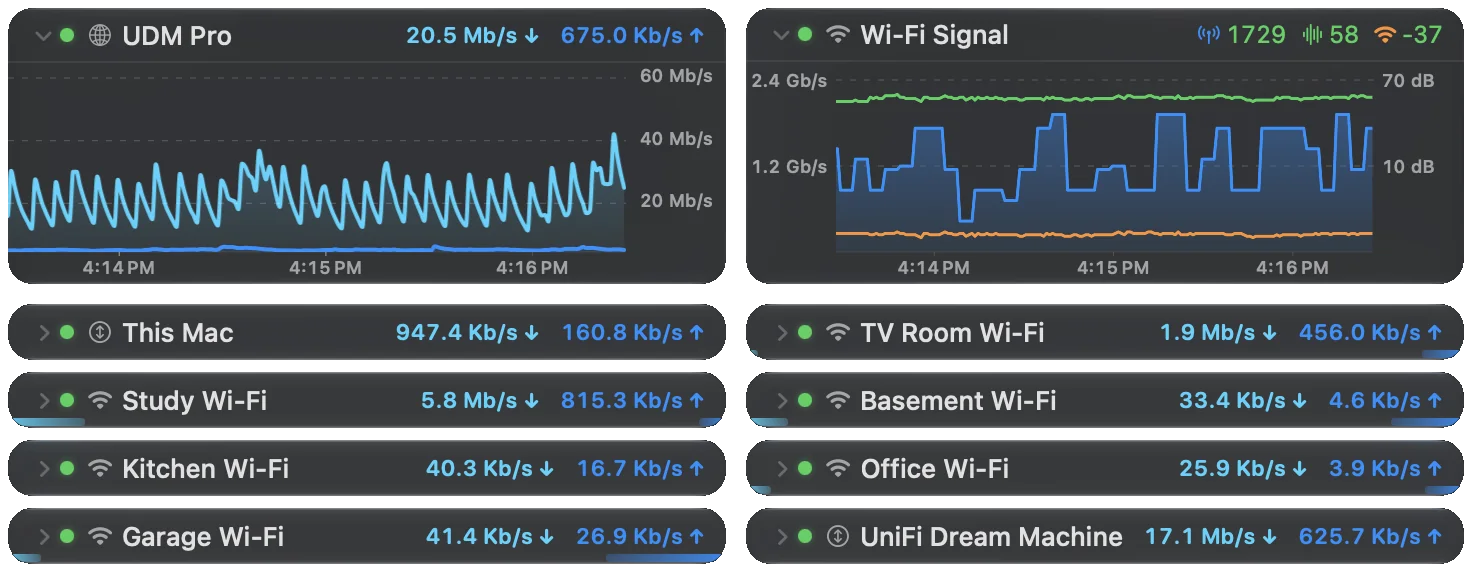
From there you get live upload and download in the menu bar, history, and monthly usage against your data cap. PeakHour also measures latency and packet loss to your router and your ISP separately, so you can tell which one is at fault. For the full picture, see the router and ISP monitor for Mac. If your router doesn’t show up, see router not detected or the SNMP troubleshooting guides.
FAQs
Should I use SNMP or UPnP to monitor my router?
Use UPnP if you have a typical home router: most support it, and a monitoring app can find the router and read its traffic totals with no setup beyond one checkbox. Use SNMP if your router, firewall or access point supports it and you want per-interface traffic, 64-bit counters or authenticated, encrypted access with SNMPv3.
Is UPnP safe to turn on?
Reading traffic counters over UPnP is harmless, but the UPnP switch on a router is network-wide. With it on, any device on your network can ask the router to open ports without a password, so a compromised device could expose a service to the internet. If you trust the devices on your network it's a reasonable trade; if not, leave it off and use SNMP instead.
Does macOS support SNMP?
Yes. macOS includes the Net-SNMP command-line tools, such as snmpget and snmpwalk, so you can query SNMP devices from Terminal. It also includes the snmpd agent, but it is switched off. To let PeakHour monitor another Mac over SNMP, use the free PeakHour Enabler tool.
Can UPnP show how much bandwidth each device uses?
No. A router's UPnP Internet Gateway Device service reports totals for the whole internet connection, not a per-device breakdown. To see an individual device, monitor that device directly over SNMP. Macs, PCs, NAS drives, switches and access points often support it.
Which SNMP version should I use?
Use SNMPv3 if your device supports it, because it adds authentication and encryption. SNMP v1 and v2c identify you only with a community string that is sent unencrypted, so keep them read-only and on your local network. Prefer v2c to v1, because v2c added the 64-bit counters that fast connections need.
Does PeakHour support both SNMP and UPnP?
Yes. PeakHour finds your internet router automatically over UPnP and also supports SNMP v1, v2c and v3, including v3 authentication and privacy. Over UPnP it only reads traffic counters and connection status: it never opens ports or changes your router's settings.