Quick answer: PeakHour 6 looks for a router over UPnP whenever your Mac joins a network. If it finds one on your current network that reports its traffic, it shows it as a monitor straight away, with graphs and history. It saves nothing to your settings unless you click Adopt, so the café, office and hotel networks you pass through leave nothing behind in your settings. And a router you haven’t adopted is never counted against your data cap.
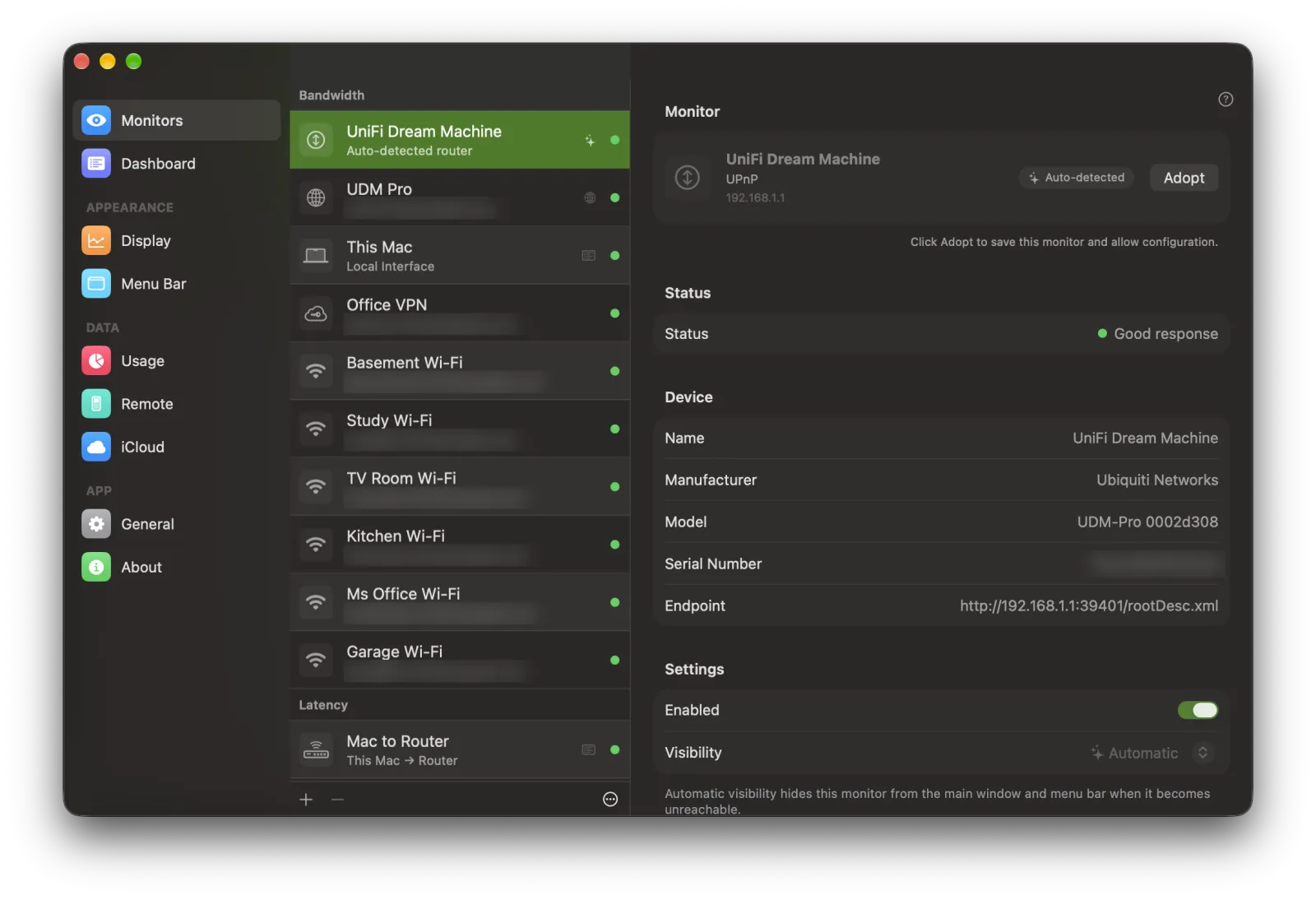
Finding the router is the easy part
Most home routers support UPnP (Universal Plug and Play). A router that does announces itself on your local network as an Internet Gateway Device. Ask the network for gateways and the router answers with its name, its address and a unique identifier. The same service reports how many bytes have crossed the router’s internet connection, which is all PeakHour needs to show live upload and download for the whole network. Our SNMP vs UPnP guide covers what UPnP can and can’t report.
So the obvious design writes itself: search the network, find a router, add it as a monitor.
PeakHour looks at a few set moments: shortly after it launches, when your Mac wakes, and when your Mac joins a network. After a network change it looks twice, once after about 8 seconds and again after about 25. A network that is still settling (DHCP handing out an address, a captive portal, a VPN coming up) often isn’t ready for the first look. Each look sends a discovery request, then reads every router’s traffic counters three times, 2 seconds apart.
Finding routers was never the hard part. Deciding what to do with them was.
Why a detected router is never saved
A Mac laptop joins a lot of networks: home, the office, a café, a hotel, a friend’s place. If PeakHour saved every router it found, your settings would slowly fill with routers you’ll never see again. Then it would need rules for them. When does one expire? How do you hide one? What happens when iCloud syncs a list of stale hotel routers to your desktop Mac? Each of those rules is another way to get it wrong, and you’d be the one cleaning up.
We didn’t want any of that, so PeakHour doesn’t save detected routers at all.
A detected router is a live monitor that exists only while you’re on its network. It behaves like any other monitor. It draws graphs, it keeps history, and it can become your Internet Gateway, the monitor whose bandwidth the Internet Dashboard shows. But nothing about it is written to your settings, even if you change other preferences while it’s on screen. There’s nothing to expire and nothing to sync, because nothing was stored.
When you leave the network, the next look no longer finds the router, and PeakHour removes it from the list. When you come back, it returns.
How the history survives
If a detected router isn’t saved, where does its history go? PeakHour stores history per monitor, and every monitor needs a stable identity for that to work. A monitor you add by hand gets a random identity when you create it. That would be wrong for a detected router: every visit would create a new monitor, start a blank history and leave the old one behind.
So a detected router’s identity comes from the router itself. Every UPnP device reports a UDN (Unique Device Name), an identifier that the UPnP specification requires to stay the same for that device over time. PeakHour derives the monitor’s identity from that UDN, so the same router always produces the same monitor and the same history file. Leave the network on Friday, come back on Monday, and Monday’s graph carries on from Friday’s.
Two consequences follow:
- A router with no UDN is never shown. It can’t be recognised from one visit to the next, so every look would create a new monitor.
- Old history is cleaned up eventually. If you never adopt a router and never go back, PeakHour keeps its history for at least 60 days after it last recorded anything, then deletes it. That comfortably covers a monthly trip.
Detected or adopted
Keeping a router is a deliberate act: in Settings → Monitors, you click Adopt in the monitor’s header or in its right-click menu. PeakHour then saves it as an ordinary bandwidth monitor. Its identity doesn’t change, so the history and totals it has already collected stay with it. An adopted router stays in your list when you leave its network.
The difference between detected and adopted explains the rest of the interface:
- A detected router is easy to spot. Its row is tinted yellow, carries a sparkles badge and reads Auto-detected router.
- Its settings are locked. You can watch its graph and status, but you can’t rename it or change anything until you adopt it. The header says so: Click Adopt to save this monitor and allow configuration.
- It has no delete button. There’s nothing saved to delete, so delete and duplicate are unavailable. If you don’t want detected routers at all, turn detection off from the ⋯ menu under the monitor list.
The help article on routers detected automatically walks through each of these with screenshots.
Picking the right router
The mistakes in this feature are quiet ones. A monitor that graphs the wrong device looks perfectly plausible. It has a name, an address and a moving line, and nothing on screen tells you it’s wrong. So PeakHour shows a router only if it passes four checks:
- It reports a UDN, for the reason above.
- You don’t already monitor it over UPnP. If you added the router during first-time setup, or as a UPnP monitor of your own, PeakHour won’t show a detected copy beside it.
- It’s on your current subnet.
- It reports traffic. Answering a discovery request proves that a device exists, not that it can report throughput. A monitor that can never draw a graph is worse than no monitor.
Three cases took most of the design work.
Just after a network change
The subnet check matters more than it sounds. PeakHour’s list of discovered devices isn’t cleared the moment you change networks. For a short time after you arrive, until the first fresh answers come in, that list can still hold the previous network’s router.
Without the check, you could open your laptop in a hotel and see your home router, apparently still graphing. So PeakHour compares the router’s address with your Mac’s current subnet and shows only a router that is inside it. If PeakHour doesn’t know the current subnet yet, it shows nothing. An unknown network isn’t permission to show a device.
Idle connections
The traffic check has its own trap. The simplest version is “the counters must move”, but at 3 a.m. a quiet home connection carries almost nothing. If PeakHour demanded movement, it would only ever find routers while you were downloading something.
So there are two ways to pass. If the router’s download and upload counters both move during the few seconds PeakHour samples them, that’s proof on its own. If they don’t move, PeakHour waits for a second sighting: the router must also have answered the traffic requests on an earlier look. One reading of zero is also what a device that answered once and then vanished looks like, and a second sighting tells the two apart. On a quiet network the router usually appears after the second look, about half a minute after you join.
Mesh Wi-Fi
A mesh system can have several nodes that each advertise themselves as an Internet Gateway Device. And because a detected router can’t be dismissed, showing all of them would leave you with a row of monitors you can’t remove.
So PeakHour shows at most one detected router at a time. If more than one passes the checks, it prefers the one at your Mac’s default gateway address, the router your Mac actually sends its internet traffic through. On a mesh system that’s normally the main router.
Double NAT is rarely a problem here. If your ISP’s modem is also a router, with your own router plugged into it, the modem never answers your Mac’s discovery requests at all. UPnP discovery uses multicast, which stays on the local network, and routers don’t forward it.
Keeping a hotel router out of your data cap
This is the case we designed around most carefully.
PeakHour’s usage monitor tracks your monthly data against your ISP’s quota. In Settings → Usage, Track Usage For either names one monitor, such as the router you picked during setup, or is set to Automatic. Automatic follows whichever monitor is your Internet Gateway.
Now take a laptop to a hotel with Track Usage For set to Automatic. PeakHour detects the hotel router, and since it’s the router your Mac is actually using, it can become the Internet Gateway. Without a guard, Automatic would follow it, and the hotel’s traffic would count against your home ISP’s quota. The total would be wrong and the cause invisible.
So the rule is simple: a router you haven’t adopted is never counted. If the Internet Gateway is a detected router, Automatic usage pauses. Counting starts again when the gateway is a monitor you saved. If you set Track Usage For to a specific monitor instead, it can only be one you’ve saved, because detected routers don’t appear in that list.
Pausing is the right outcome. Traffic on someone else’s network isn’t on your plan. The Track Usage For setting explains both modes.
Why detection is UPnP only
SNMP gives far more detail than UPnP, including per-interface traffic and 64-bit counters. But a device won’t answer SNMP until you give it a community string or an SNMPv3 user name and password, so it can never be zero-setup. PeakHour detects UPnP routers only. You add SNMP devices yourself with the + button in Settings → Monitors. The SNMP vs UPnP guide explains which to use when.
If PeakHour doesn’t find your router
When nothing is detected, a Detected on This Network section at the bottom of the Monitors list reads Discovering routers… while PeakHour looks, then No routers found on this network. The usual causes:
- UPnP is off on the router. Some routers ship with it off, and some owners switch it off. See How do I turn on UPnP on my router?, which also explains what switching it on means for your network.
- PeakHour doesn’t have Local Network access. macOS must allow it, and the permission can be off after a reinstall or if it was declined. See PeakHour can’t discover your router.
- The router answers but doesn’t report traffic. Some routers implement UPnP badly. See Router not detected, or data wrong.
- The router only supports SNMP. Add it by hand from Settings → Monitors.
Detected routers are one part of a router and ISP monitor for Mac that is meant to work before you’ve configured anything. To check the rest of your setup, the Mac network monitoring checklist covers it step by step.
FAQs
How does PeakHour find my router?
Over UPnP. PeakHour sends a UPnP discovery request on your local network, and routers that support the Internet Gateway Device service answer it. PeakHour then reads each router's traffic counters to check that it can draw a graph. It looks shortly after it launches, when your Mac wakes, and after you join a network, with a second look about 25 seconds later.
Why isn't the detected router saved in my settings?
Because a Mac laptop joins a lot of networks, and saving every router it passes would fill your settings with routers you never see again. A detected router exists only while you're on its network. To keep one, click Adopt and it becomes an ordinary monitor. See Adopting a detected router.
Do I lose the history when I leave the network?
No. PeakHour stores the history against the router's own UPnP identity, its UDN, so when you come back the same router returns with the same history. If you never adopt the router, PeakHour keeps that history for at least 60 days after it last recorded anything. If you adopt it, the history stays with the monitor.
Will a café or hotel router count against my data cap?
No. With Track Usage For set to Automatic, usage follows your Internet Gateway, but never a router you haven't adopted. If a detected router becomes the Internet Gateway, PeakHour pauses usage counting instead. See the Usage settings.
Can PeakHour detect SNMP devices automatically?
No. A device won't answer SNMP until you give it a community string or an SNMPv3 user name and password, so SNMP can't be set up without you. Automatic detection uses UPnP only. Add SNMP devices yourself with the + button in Settings → Monitors.
How do I turn router detection off?
Open Settings → Monitors, click the ⋯ button at the bottom of the monitor list, and uncheck Detect Routers Automatically. Detected routers leave the list straight away. Routers you've adopted stay. See Turning router detection off.