Quick answer: To track your ISP’s performance on a Mac, run
networkQualityin Terminal for speed and responsiveness, then ping your router and an internet host side by side to see whether slowdowns start at home or at your ISP. One test only shows a single moment. To catch drops that come and go, use a monitor such as PeakHour, which records latency, packet loss and outages all day.
Test speed and responsiveness with networkQuality
Every Mac running macOS Monterey or later includes Apple’s own network test. It needs no download and nothing to sign up for.
- Open Terminal (Applications → Utilities).
- Type
networkQualityand press Return. - Wait for the test to finish. It usually takes under 30 seconds.
You’ll see three numbers that matter:
- Uplink capacity and Downlink capacity: your upload and download speed. Compare them with the speed on your plan.
- Responsiveness: how many round trips your connection can complete in a minute while it’s busy, in RPM. Apple rates it Low, Medium or High.
Responsiveness is the number most speed tests leave out. A connection can download quickly and still make video calls freeze when someone else starts a big upload. Apple’s guide, Test Wi-Fi networks with Apple Network Responsiveness, explains the ratings. If yours is Low, its suggestion is a router with Smart Queue Management (SQM).
Useful options (see man networkQuality):
| Command | What it does |
|---|---|
networkQuality -s |
Tests upload and download one after the other, which is closer to what other speed tests report |
networkQuality -I en0 |
Tests over one interface, for example Wi-Fi only |
networkQuality -c |
Prints the results as JSON, which makes them easy to log from a script |
The test uses real data on your plan, so go easy on a hotspot or a capped connection.
Find out whether it’s your router or your ISP
A slow test doesn’t tell you where the problem is. Your Mac’s Wi-Fi, the router, the line and your ISP’s network all sit between you and the internet. You can split them apart with two pings.
- Find your router’s address:
route -n get default | grep gateway - In one Terminal window, ping the router:
ping -c 100 192.168.1.1(use your router’s address). - In a second window, ping an internet host at the same time:
ping -c 100 1.1.1.1 - Compare the summary lines: packet loss and the avg and stddev round-trip times. The stddev roughly shows the jitter.
How to read the results:
- The router is bad too: the problem is your Wi-Fi or the router. Try an Ethernet cable before you call your ISP.
- The router is clean and the internet host is bad: the problem is the line or your ISP.
- Both are clean but one service is slow: it’s that service, not your connection.
For a quick browser check of packet loss and jitter, try the free packet loss test, or run the 5-minute internet stability test to catch drop-outs a short test misses.
Check what each app is using
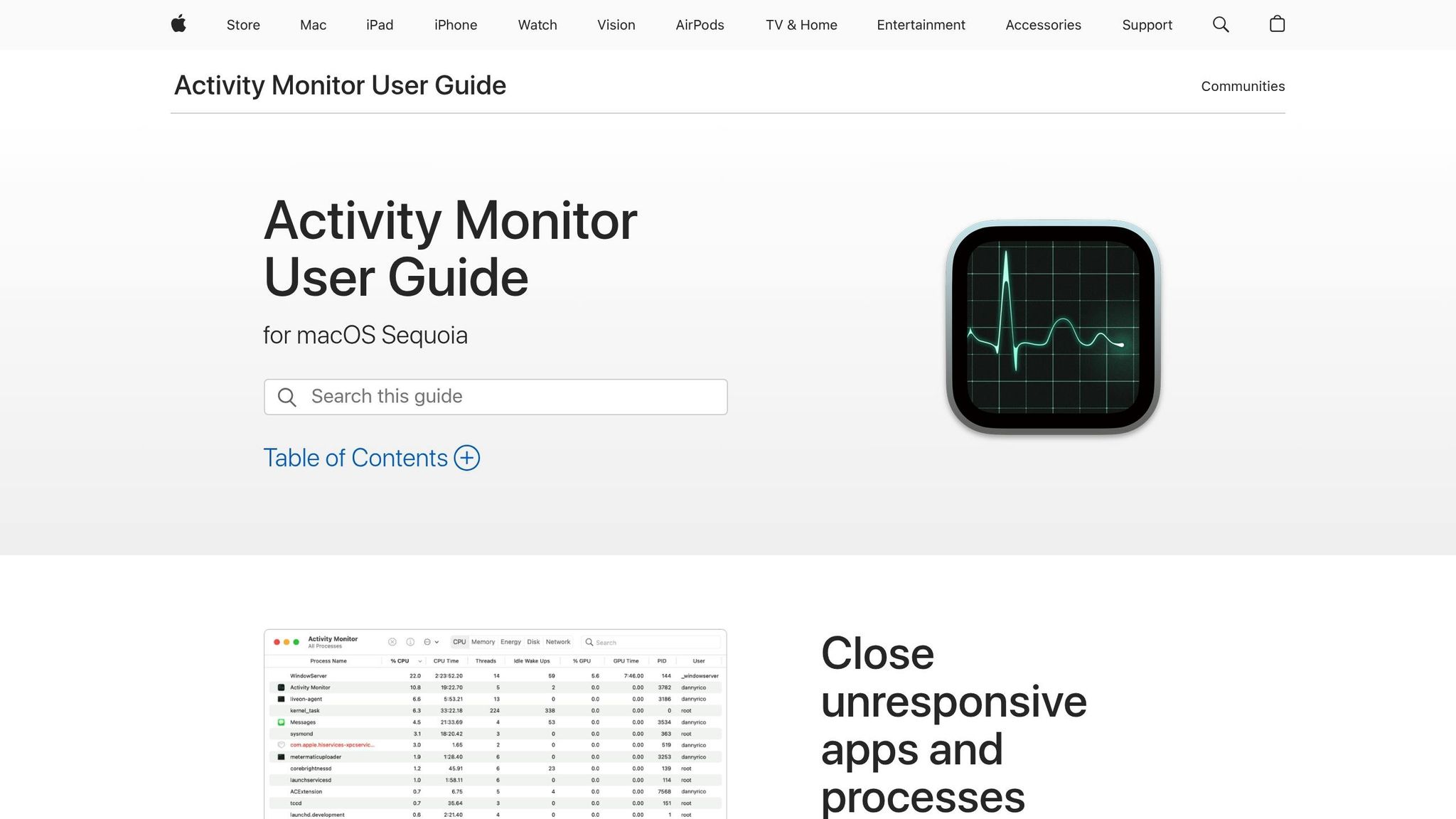
If the connection only slows down sometimes, make sure it isn’t your own Mac. Open Activity Monitor, choose the Network tab and sort by Rcvd Bytes or Sent Bytes. A cloud backup or a big update in the background can fill your upload and make everything else feel slow. See how to check data usage on a Mac for more.
Why one-off tests aren’t enough
ISP problems are often intermittent. The line drops for 40 seconds at 8 pm, or latency doubles every evening when the neighbourhood starts streaming. A test you run the next morning will look fine, and “it’s fine now” is the answer you’ll get from support.
To prove a pattern, you need measurements around the clock, with timestamps. Run them from a Mac that’s connected all day, ideally over Ethernet, so your Wi-Fi isn’t part of the result.
Track ISP performance continuously with PeakHour
PeakHour is a router and ISP monitor for Mac that lives in the menu bar. It runs the checks above all the time and keeps the record.
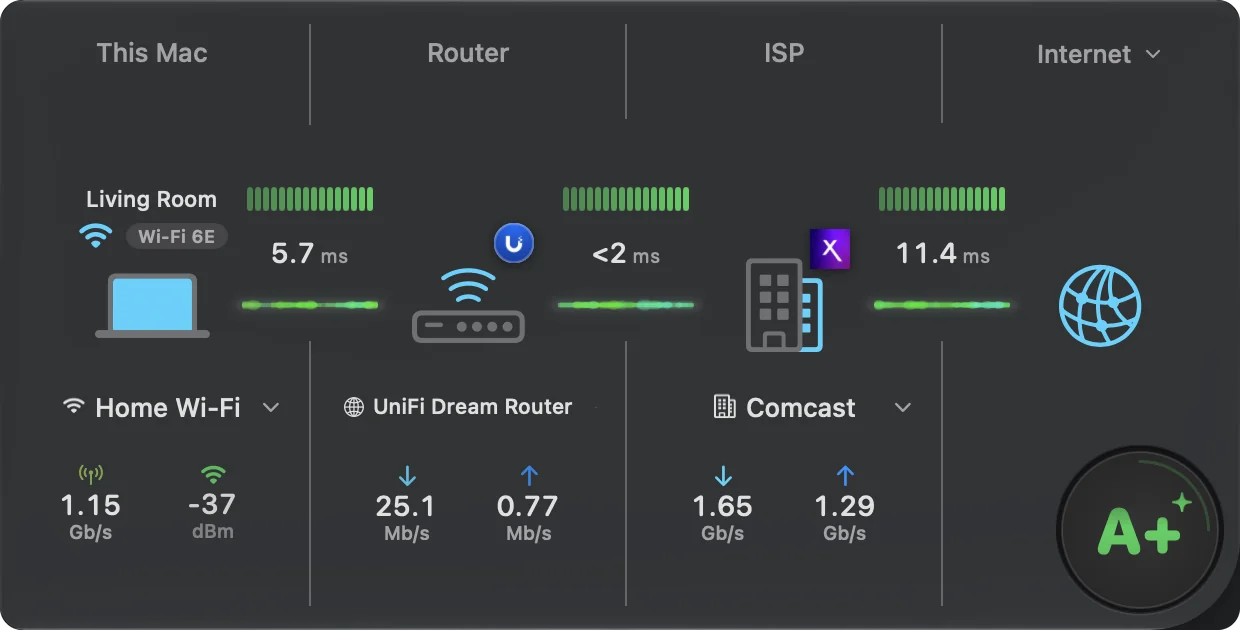
- Router or ISP, measured separately. PeakHour finds your router and your ISP’s gateway automatically. It then tracks latency, jitter and packet loss on each link: Mac to router, router to ISP, and on to hosts such as Cloudflare or Google. Packet loss is reported over a rolling 5-minute window.
- Scheduled speed and responsiveness tests. It runs Apple’s network quality test every hour, every 6 or 12 hours, or daily, and again when your network changes.
- Your plan’s speed on the graph. Set your plan’s maximum download and upload, and the live bandwidth graph shows how close you get.
- Outage alerts. Turn on the Router becomes unreachable and Internet becomes unreachable notifications. PeakHour tells you when the connection drops and again when it’s back.
- Your ISP, identified. If you turn on ISP lookup (it’s off until you opt in), the dashboard shows your provider’s name, network number (ASN) and public IP address.
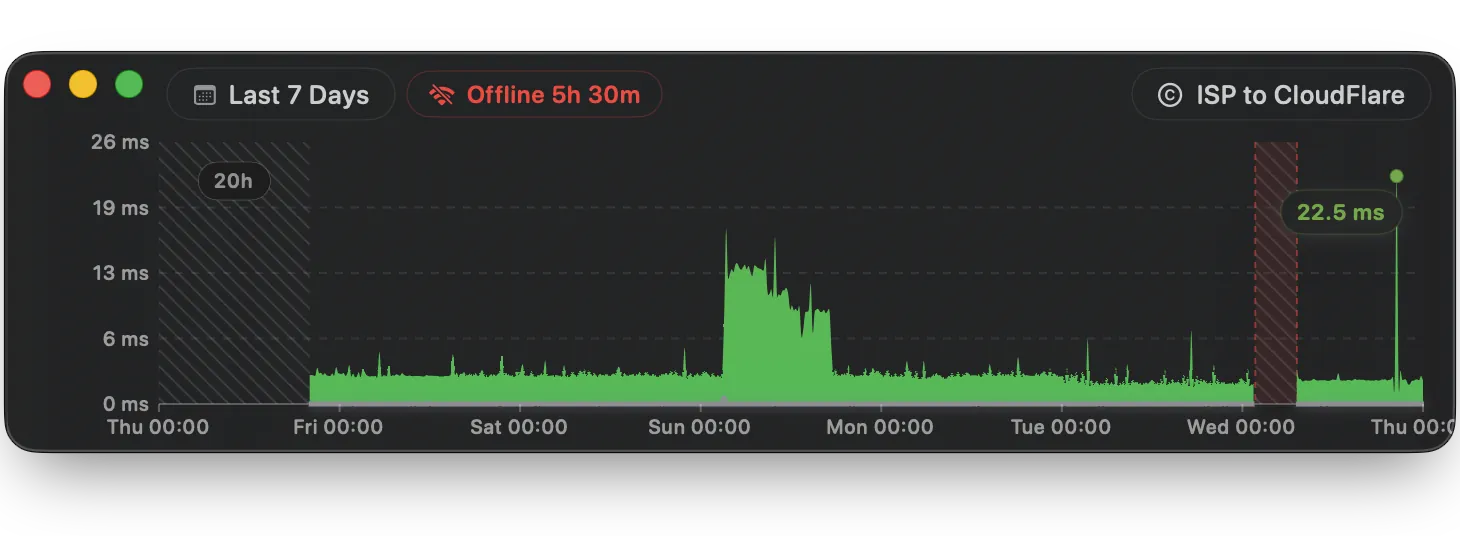
The History window marks every outage and how long it lasted, next to the latency and bandwidth for the same hours. To share the data, turn on CSV Logging for a monitor and it writes its readings to a file every minute or hour.
PeakHour has a 7-day free trial, then costs $19.99 a year or $59.99 once.
What to send your ISP
When you contact support, give them facts they can’t dismiss:
- Dates, times and durations of each drop or slowdown, ideally a week or more of them.
- Whether your router was reachable at the time. If it was, the fault isn’t in your home.
- Speed and responsiveness results from
networkQuality, compared with your plan. - How you’re connected: Ethernet or Wi-Fi, plus your router and modem model.
- What you’ve already tried, such as restarting the modem and router or swapping the cable.
A History screenshot or a CSV log covering several days usually moves a ticket further than a single speed test.
Tools at a glance
| Tool | Best for | Keeps history | Price |
|---|---|---|---|
networkQuality (Terminal) |
Speed and responsiveness right now | No | Free, built in |
ping (Terminal) |
Router vs ISP, packet loss | No | Free, built in |
| Activity Monitor | Which app is using the connection | No (resets at restart) | Free, built in |
| Speedtest by Ookla | A quick speed test against a nearby server | Results list | Free |
| PeakHour | 24/7 latency, loss, outages and scheduled tests | Yes | 7-day free trial, then $19.99/year or $59.99 once |
FAQs
How do I test my internet speed from Terminal on a Mac?
Open Terminal and type networkQuality, then press Return. It's built into macOS Monterey and later. When the test finishes, usually in under 30 seconds, it reports your uplink and downlink capacity and a responsiveness score in round-trips per minute (RPM), rated Low, Medium or High. Add -s to test upload and download one after the other instead of together.
What is a good RPM in networkQuality?
Apple groups results into Low, Medium and High. High means calls and games should stay smooth even while other devices on the network are busy. Low means a big download or iCloud backup elsewhere on the network is likely to make FaceTime or gaming unreliable. Low responsiveness with good speed usually points to buffering at the router, which Smart Queue Management (SQM) can fix.
How can I tell whether my router or my ISP is causing the problem?
Ping your router and an internet host at the same time. If the router replies quickly with no loss but the internet host is slow or dropping packets, the problem is beyond your home network. PeakHour does this continuously and measures each link separately: Mac to router, router to your ISP's gateway, and on to the internet.
How do I prove to my ISP that my internet keeps dropping?
Give them dates, times and durations. A single speed test taken when the line is working proves nothing. Record when it drops, for how long, and whether your router was still reachable at the time. PeakHour's History window marks every outage with its length, and CSV logging gives you a file to attach to a support ticket.
Does networkQuality use my data allowance?
Yes. Apple's documentation says the tool connects to the internet and uses data on your plan. A test on a fast connection can transfer hundreds of megabytes or more, so run it sparingly on a metered or hotspot connection.
Can PeakHour run speed tests automatically?
Yes. PeakHour can run Apple's network quality test every hour, every 6 or 12 hours, or daily, and again whenever your network changes. The results appear on the Internet Dashboard next to live latency, packet loss and bandwidth.