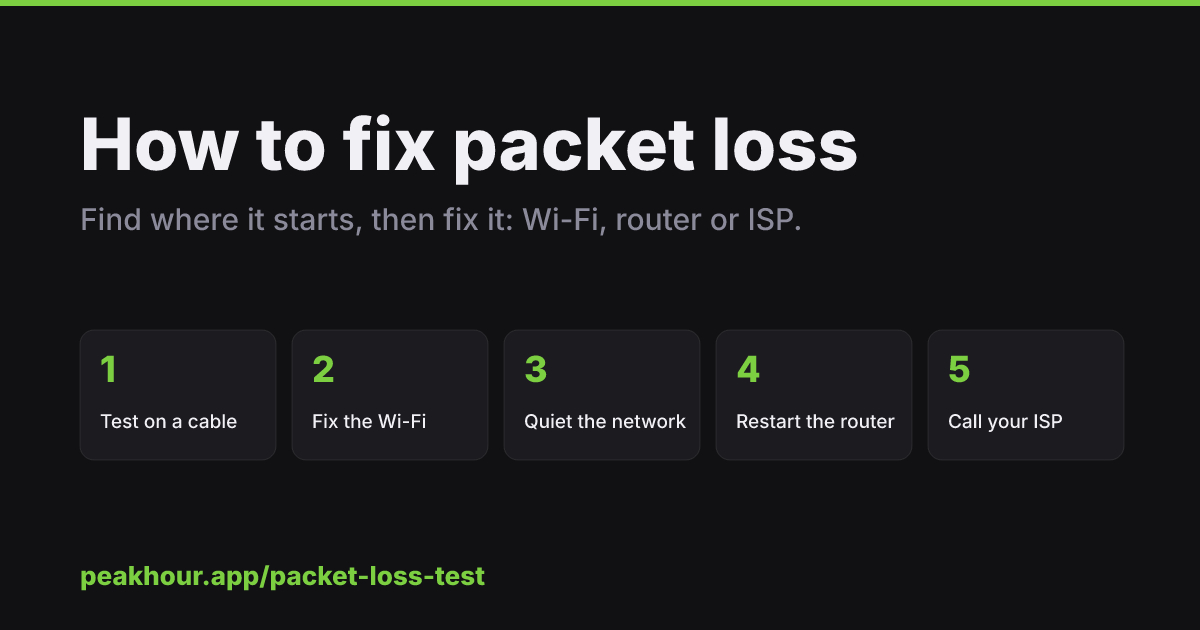
Short answer: first find out where the loss starts. Run a packet loss test on Wi-Fi, then again with an Ethernet cable plugged into the router. If the loss goes away on the cable, fix your Wi-Fi. If it stays, pause everything else on the network and restart the router. If it’s still there, the problem is most likely your line or your ISP, and you should collect evidence and contact them.
Step 1: Measure it properly
You can’t fix what you haven’t measured, and most “internet tests” can’t see packet loss at all. Speed tests run over TCP, which quietly resends lost packets, so a line losing 5% of its packets can still show a great download speed.
Use a test that sends real UDP packets with no retransmission, the way calls and games do. Our free packet loss test does exactly that and shows every packet on a timeline. Run it two or three times and note:
- the packet loss percentage,
- whether the loss comes in bursts or is spread out,
- the jitter and any late packets.
Step 2: Test on a cable
Plug your computer into the router with an Ethernet cable, turn Wi-Fi off, and test again.
- Loss gone? The problem is your Wi-Fi. Go to step 3.
- Loss still there? Your Wi-Fi is off the hook. Skip to step 4.
No Ethernet port? A USB-C Ethernet adapter costs very little and is the single most useful tool for diagnosing a home network.
Step 3: Fix your Wi-Fi
Wi-Fi is the most common cause of packet loss by a long way. In order of effort:
- Move closer. Walls, floors, mirrors and fish tanks all absorb signal. Test from the same room as the router to confirm distance is the problem.
- Switch band. 5 GHz and 6 GHz are far less crowded than 2.4 GHz. If your router combines bands under one name, try splitting them to see which one you are on.
- Change channel. Neighbouring networks on the same channel interfere with yours. Most routers have an “auto” setting; if yours is stuck, pick a quieter channel by hand.
- Move the router. Up high, in the open, near the middle of the home, away from microwaves and cordless phone bases.
- Add coverage. A mesh system or a wired access point fixes large or awkward homes far better than a range extender, which halves the speed it repeats.
Step 4: Quiet the network
A full connection drops packets. Pause cloud backups, game and system updates, video uploads and 4K streams on other devices, then test again.
If the loss disappears when the network is quiet, you have a congestion problem, often with bufferbloat: the router lets a huge queue build up when the line is busy, so everything else waits. Turn on your router’s SQM (Smart Queue Management) or QoS feature if it has one. It is the most effective fix for calls and games that fall apart whenever someone else is downloading.
Step 5: Restart and update the router
Routers run for months without a reboot and slowly run out of memory. Restart it, and your modem if it’s a separate box. While you’re there:
- check for a firmware update,
- feel whether it’s hot, and give it air if it is,
- check every cable: the Ethernet cables, the line from the wall, and any coax connectors, which should be finger-tight.
Step 6: Collect evidence, then call your ISP
If you still see loss on a cable, with nothing else running, after a restart, the problem is probably outside your home. ISPs are much more helpful when you can show them evidence:
- Share your test results. Our packet loss test gives every result a link you can send to your ISP.
- Show when it happens. One bad test is easy to dismiss. Loss every evening for a week is not.
- Show where it starts. A traceroute that shows loss beginning at the first hop past your router points squarely at their network.
That last point is where a one-off test runs out. On a Mac, PeakHour monitors your connection 24/7 from the menu bar, records packet loss and latency to every hop, and keeps the history. When the loss comes back at 8 pm on a Tuesday, you’ll have the graph that shows exactly when it started and whether it was your Wi-Fi, your router or your ISP.
Quick reference
| What you see | Most likely cause | First thing to try |
|---|---|---|
| Loss on Wi-Fi, none on a cable | Wi-Fi signal or interference | Move closer, switch to 5 GHz |
| Loss in bursts | Interference, roaming, router stalls | Change channel, restart router |
| Loss only when others are online | Congestion or bufferbloat | Turn on SQM or QoS |
| Big delay spikes, little loss | Bufferbloat | Turn on SQM or QoS |
| Loss on a cable, network quiet | Line or ISP | Check cables, then call your ISP |
| Test can’t connect at all | VPN or firewall blocking UDP | Try without the VPN |
Not sure which one you have? Run the test and read the explanation under your result.