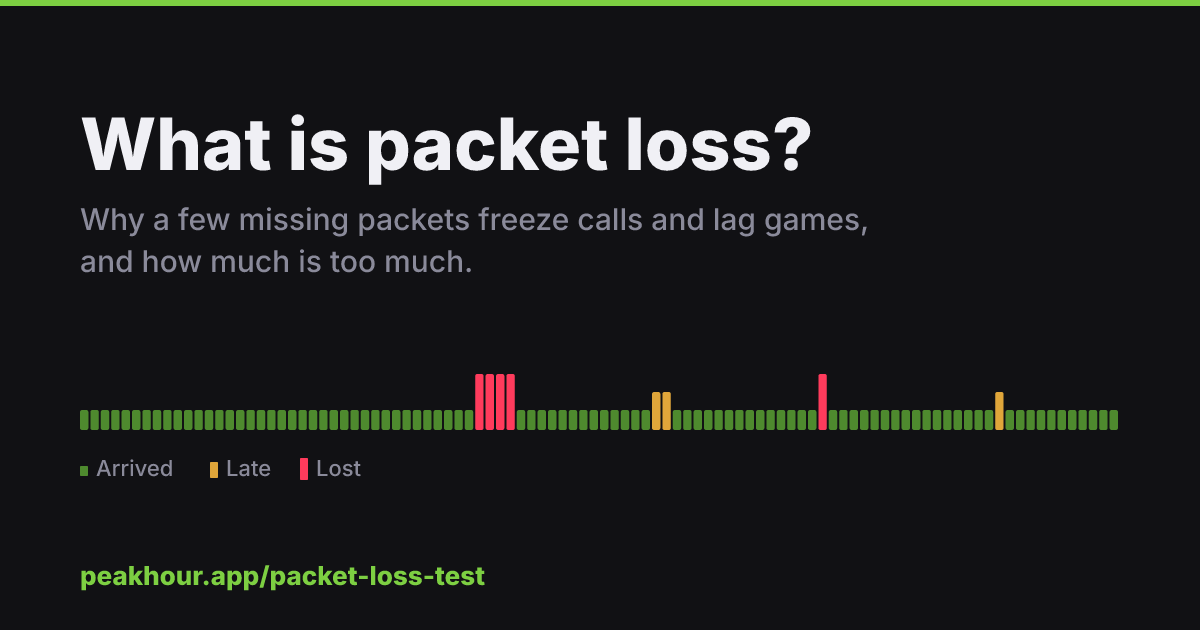
Short answer: packet loss is the percentage of data packets that leave one device and never arrive at the other. On a healthy connection it should be 0%. Under 1% is fine for almost everything; from 1–3% video calls glitch and games stutter; above 3% calls break up and games become hard to play. You can check yours in 20 seconds with our free packet loss test.
How data travels, and where it goes missing
Everything you send or receive online is split into small chunks called packets, typically up to 1,500 bytes each. A single video call sends dozens of packets every second in each direction. Each one crosses your Wi-Fi, your router, your ISP’s network and several more networks before it reaches the other side.
At any of those steps a packet can be dropped: a Wi-Fi frame can be drowned out by interference, a router’s queue can overflow when the line is full, or a faulty cable can corrupt the data so it is thrown away. The packet is simply gone.
Why some apps notice and others don’t
What happens next depends on the app.
- Web pages, downloads and email use TCP, which notices a missing packet and asks for it again. You don’t see errors. You see things get slower, because every resend costs a round trip and TCP backs off its speed when it detects loss.
- Video calls, voice calls and online games use UDP, because a packet that arrives late is useless to them. There’s no time to ask again, so a lost packet becomes a frozen frame, a robotic word, or a character that jumps across the map.
- Streaming video sits in between. It uses TCP but buffers several seconds ahead, so small amounts of loss are hidden, while sustained loss drops the picture quality.
This is why a speed test can look perfect while your Zoom calls are unbearable: a speed test runs over TCP, which hides loss by resending.
How much packet loss is acceptable?
| Packet loss | What you’ll notice |
|---|---|
| 0% | Nothing. This is what a healthy wired connection shows. |
| Under 1% | Rarely noticeable. Occasional tiny glitch on a call. |
| 1–3% | Video calls freeze briefly, voices clip, games rubber-band. |
| 3–10% | Calls break up badly. Fast games are frustrating. Pages load slowly. |
| Over 10% | Real-time apps barely work. Something is clearly broken. |
Two related numbers matter as much as loss:
- Latency (ping) is how long a packet takes to make a round trip. To a nearby server, under 40 ms is good.
- Jitter is how much that delay changes from one packet to the next. Calls cope with a steady 80 ms far better than with delay that swings between 20 ms and 200 ms, because packets that arrive too late are thrown away just as if they had been lost.
Bursts versus steady loss
How packets are lost tells you a lot about why.
- Loss in bursts, with several packets in a row going missing and then nothing for a while, usually points to Wi-Fi interference, a device switching between access points, or a router stalling when someone starts a big upload.
- Loss spread evenly through the test, a packet here and a packet there, usually points to a weak Wi-Fi signal or a noisy line between you and your ISP.
- No loss but big delay spikes usually means bufferbloat: your router holding too much data in its queue when the connection is busy.
Our packet loss test shows every packet on a timeline so you can see which pattern you have, and explains it in plain English.
What causes packet loss?
In rough order of how often we see them:
- Wi-Fi problems: weak signal, walls, interference from neighbouring networks, microwaves and Bluetooth.
- A busy connection: cloud backups, game downloads, 4K streams and video uploads filling the line.
- The router: overheating, overloaded, old firmware, or overdue for a restart.
- Cables and the line: a damaged Ethernet cable, a loose coax connector, noise on a DSL line.
- Your ISP: evening congestion, a faulty node, or problems further upstream.
The good news is that the first three are in your control. How to fix packet loss walks through them step by step.
Why one test isn’t enough
Packet loss is often intermittent. The router that struggles every evening at 8 pm, the Wi-Fi that drops out when the microwave runs, the ISP node that fails for ten minutes twice a day: a 20-second test only sees them if you happen to run it at the right moment.
To catch intermittent loss you need to measure all the time. On a Mac, PeakHour monitors your connection from the menu bar around the clock and records packet loss and latency to every hop between you and the internet. When a problem comes back, you can see exactly when it started and whether it began on your Wi-Fi, your router or your ISP’s network.